
Last Updated on 22nd March 2026 by peppe8o

In this tutorial, I will show you how to install and use Pascal on Raspberry PI computer boards. I’ll also show you how to setup a simple and useful terminal IDE to control and analyse your Pascal code.
What Is Pascal
Many people of my age still remember from university studies what Pascal is.
A wide description of this very old programming language can be found in Wikipedia Pascal description page.
Pascal is an imperative and procedural programming language, created as a small, efficient language intended to encourage good programming practices. It is named in honour of the French mathematician, philosopher and physicist Blaise Pascal.
It was very successful in the 1970s, notably on the burgeoning minicomputer market. Widely used as a teaching language in university-level programming courses in the 1980s, it was also used in production settings for writing commercial software during the same period.
Besides others, some wide companies included Pascal in their systems (like, for example, IBM and Apple).
Because of its great success, there were numerous implementations, most notable being Borland Pascal (also known as Turbo Pascal).
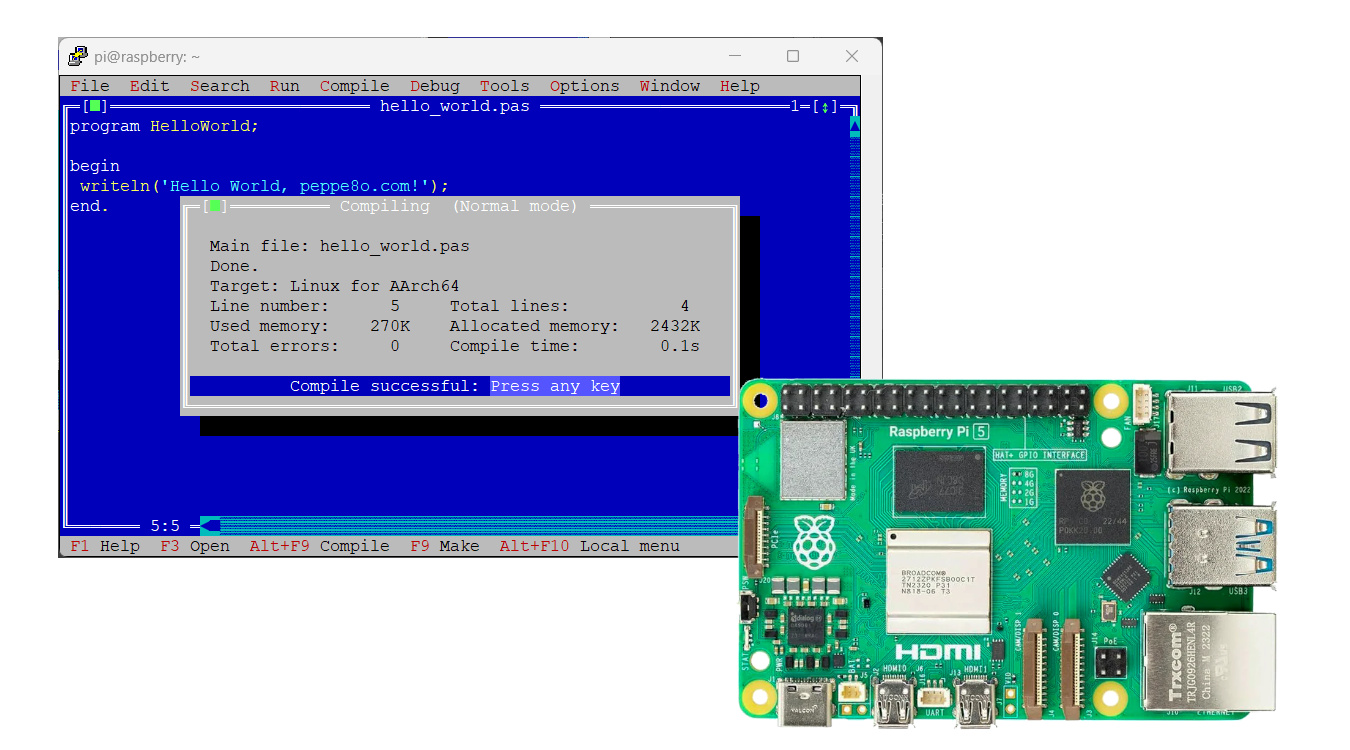
I’ll use Raspberry PI 5 model B (8GB), but this guide also works with newer Raspberry PI computer boards.
Hardware Requirements
Free Pascal is really lightweight, having very affordable memory and disk requirements (Ref: https://freepascal.org/docs-html/current/user/usersu1.html#x9-80002.1.1):
- 8 Megabytes of free memory. This is sufficient to allow compilation of small programs.
- Large programs (such as the compiler itself) will require at least 64 MB. of memory, but 128MB is recommended. (Note that the compiled programs themselves do not need so much memory.)
- At least 80 MB of free disk space. When the sources are installed, another 270 MB are needed.
What We Need
As usual, I suggest adding from now to your favourite e-commerce shopping cart all the needed hardware, so that at the end you will be able to evaluate overall costs and decide if to continue with the project or remove them from the shopping cart. So, hardware will be only:
- Raspberry PI Computer Board (including proper power supply or using a smartphone micro USB charger with at least 3A)
- high-speed micro SD card (at least 16 GB, at least class 10)
Step-by-Step Procedure
Prepare the Operating System
The first step is to install the Raspberry PI OS Lite to get a fast and lightweight operating system (headless). If you need a desktop environment, you can also use the Raspberry PI OS Desktop, in which case you will work from its terminal app. Please find the differences between the 2 OS versions in my Raspberry PI OS Lite vs Desktop article.
Please make sure that your Operating System is up to date. From your terminal, use the following command:
sudo apt update -y && sudo apt full-upgrade -yInstall and Configure Free Pascal and Terminal IDE
Having Aptitude, installing Free Pascal is really simple, as executing the following command from the Raspberry PI terminal:
sudo apt install fpc -yThis will download all the dependencies, installing and configuring the Free Pascal command line (fpc) in your system. Let’s check what version is installed:
pi@raspberrypi:~ $ fpc -iV
3.2.2
Version will be helpful in a while…
From here, your fpc terminal command is ready to work using the system config file available at the “/etc/fpc.cfg” path. You can compile Pascal program files (usually “.pas” files) and execute them.
Using Free Pascal IDE
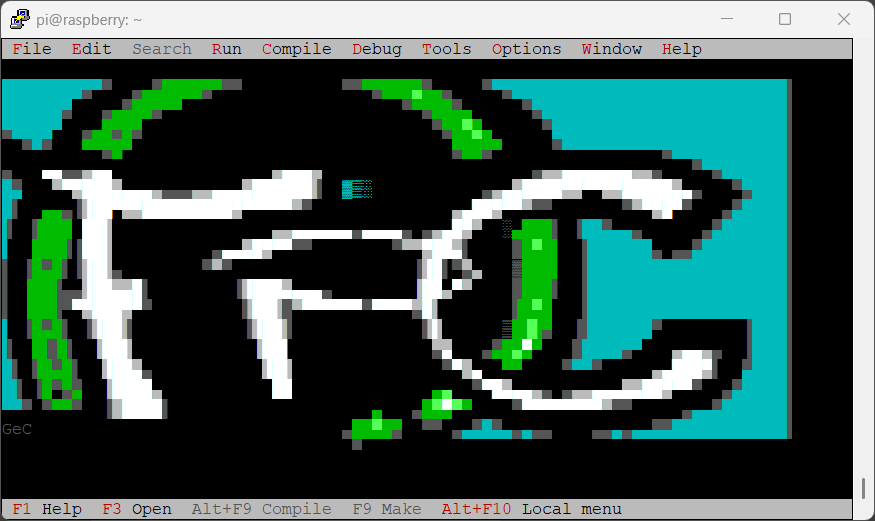
But fpc installation also includes a useful terminal IDE, which you can enable with the simple terminal command:
fpResulting in the following IDE from the terminal:
Navigating in the FP IDE is quite simple but not intuitive. Basically, the main keys / shortcuts you will use:
- arrows: move inside the active window
- ALT+ red menù letter: open selected menù drop down list
- F6 or SHIFT+F6: move between Windows
- ALT+F3: Close active window
- ALT+x: Exit IDE
- TAB: move between selectable items inside a window
- ESC: exit from selection
More shortcuts can be found in Free Pascal Keyboard Shortcuts page.
When you launch Free Pascal IDE, it will create in your current directory 2 files (if not already available): fp.dsk and fp.ini. These files own local configurations for your IDE, which are unlinked from fpc system configuration.
pi@raspberrypi:~ $ ls
fp.dsk fp.ini
Testing a Hello World Program
From here, we’ll create our classic Hello World first program.
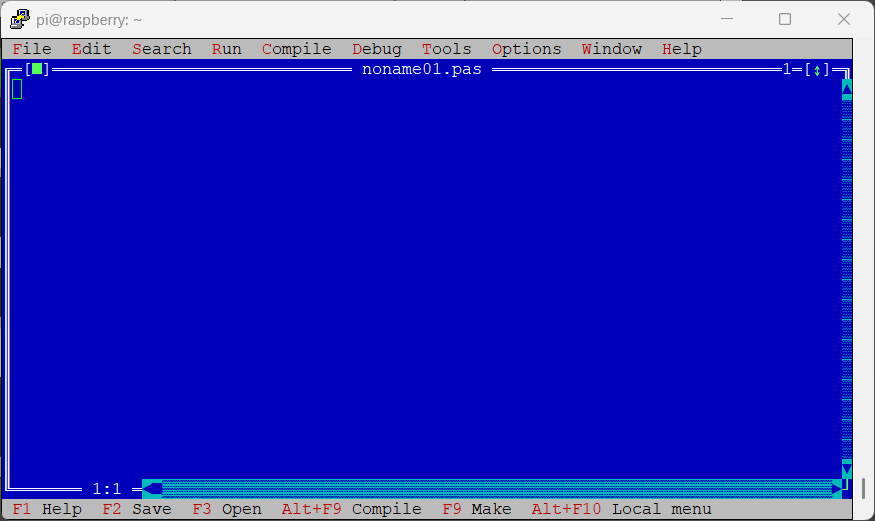
From the IDE home, create a New File (ALT+f -> New):
Copy the following text inside your editor:
program HelloWorld;

begin
 writeln('Hello World, peppe8o.com!');
end.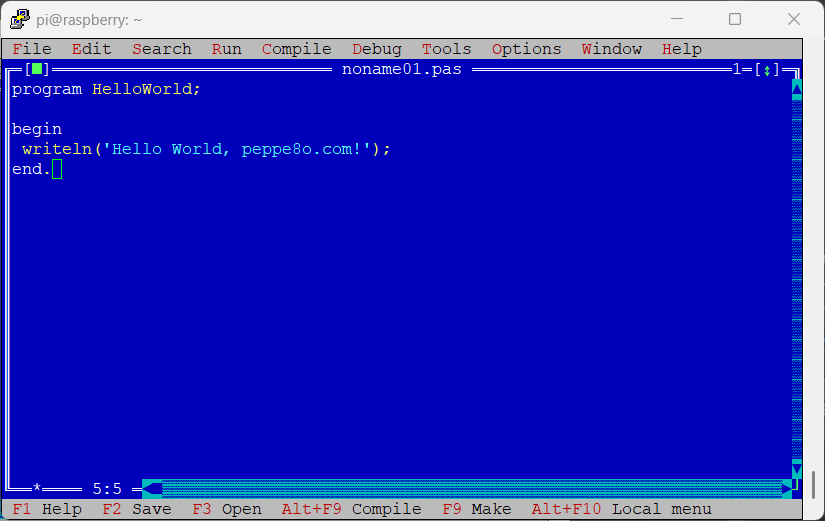
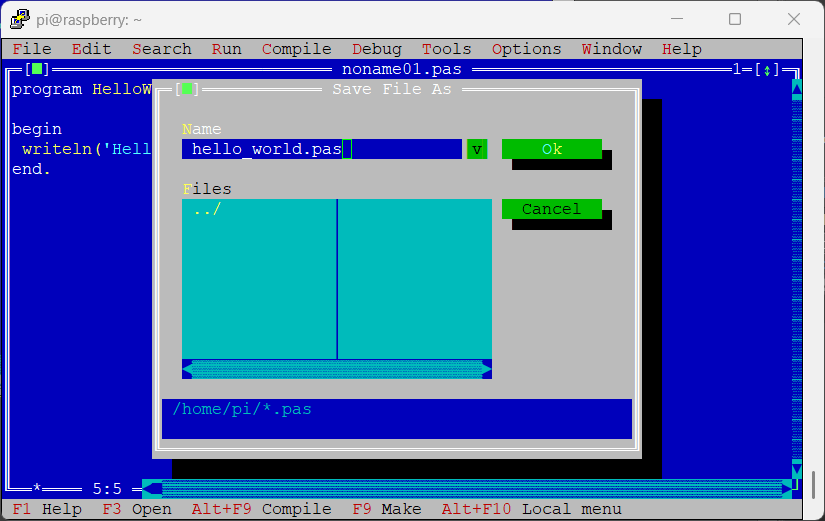
Save your file as “hello_world.pas” (ALT+f -> “Save as” -> write hello_world.pas -> press ENTER):
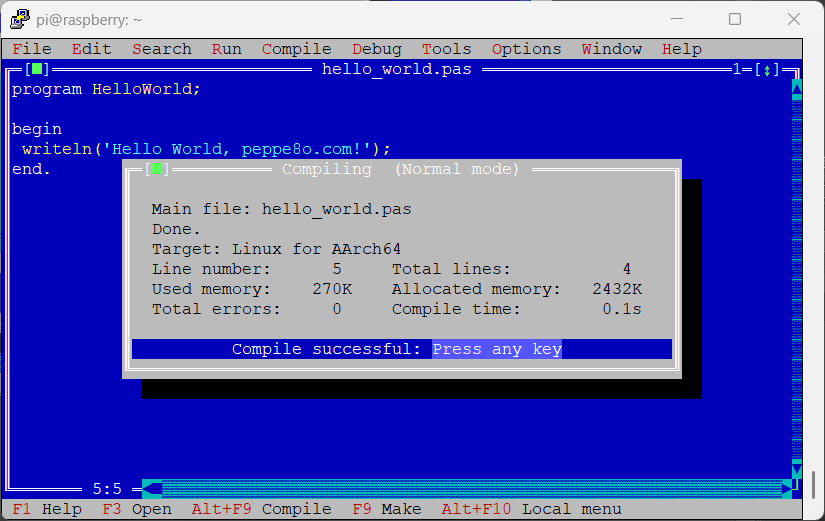
Before running your program, you need to compile it to check if the code is correct (ALT+C -> “Compile”). You should get a “Compile successful” message, as in the following screenshot:
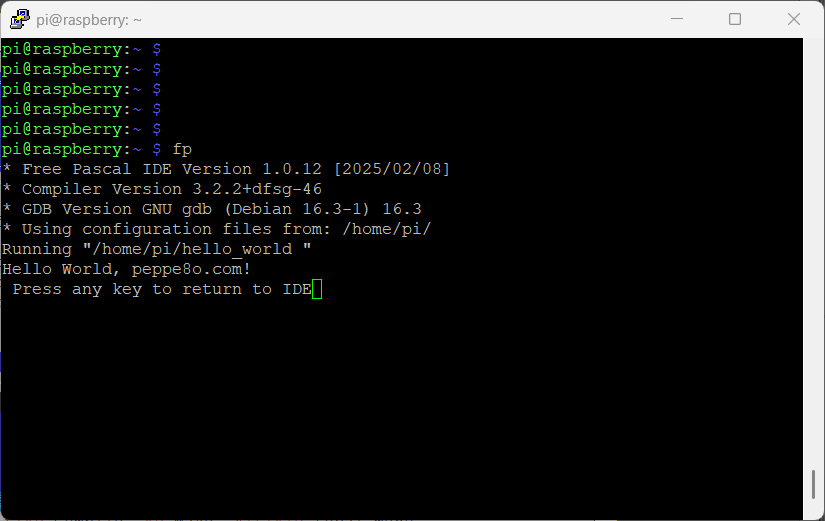
Press any key to go back on code. Run your code by selecting Run menù (Alt+r) -> Run. This will move your terminal window in the SSH shell and show your hello world program running by writing “Hello World, peppe8o.com!”:
Final operation, close the FP IDE (ALT+x) and go back to the terminal. Checking your folder content again, you will find a few more files:
pi@raspberry:~ $ ls
fp.cfg fp.dsk fp.ini hello_world hello_world.o hello_world.pas- fp.dsk and fp.ini have already been discussed. Directories included are available inside the fp.cfg file.
- fp.cfg is a configuration file for your Pascal environment, automatically created.
- hello_world.pas contains our program code, which you can check and edit from the terminal
- hello_world and hello_world.o are generated in the compiling procedure. hello_world.o contains compiled code. hello_world is the executable code. You can now also run it from the terminal by typing
./hello_world, resulting in the following output:
pi@raspberry:~ $ ./hello_world
Hello World, peppe8o.com!
Free Pascal Docs
You can find the user guides at the Free Pascal official docs.
Resources
- https://freepascal.org/docs-html/current/user/usersu1.html#x9-80002.1.1
- https://www.freepascal.org/docs-html/current/user/userse32.html
- https://en.wikipedia.org/wiki/Pascal_(programming_language)
- https://www.freepascal.org/docs.html
Next Steps
If you are interested in more Raspberry PI projects (both with Lite and Desktop OS), take a look at my Raspberry PI Tutorials.
Enjoy!

Open source and Raspberry PI lover, writes tutorials for beginners since 2019. He's an ICT expert, with a strong experience in supporting medium to big companies and public administrations to manage their ICT infrastructures. He's supporting the Italian public administration in digital transformation projects.







