
Last Updated on 1st May 2026 by peppe8o
For a while, I have been struggling in getting my Raspberry Pi connected to Bluetooth headphones. This was with the idea to use in future projects available home assistants (like Google Assistant or Amazon Alexa) via Bluetooth headphones or speakers on a Raspberry PI OS Lite installation (without the need of a GUI or graphical Bluetooth manager).
My tests have been frustrated by common issues not well documented on the web and issues connecting an audio Bluetooth device are really complex to find and solve. Also, raspi-config can’t help, since this doesn’t include any Bluetooth configuration in Interfacing options. So I started to follow many guides until I reached a configuration that simply works. The main issues have been related to Bluetooth service errors on startup and connection breaking.
The solution came out with several fixes coming from different tutorials, being particularly important the tricks from https://www.sigmdel.ca/michel/ha/rpi/bluetooth_n_buster_01_en.html and http://youness.net/raspberry-pi/bluetooth-headset-raspberry-pi. In this tutorial, I’ll try to make all of them together.
According to the youness.net article, with time there have been some changes in managing the audio connection with Bluetooth. Raspberry PI OS uses BlueZ as a Bluetooth stack:
- BlueZ deals with pure Bluetooth tasks (pairing/connection/…)
- So, BlueZ needs additional SW components for audio management
- The First Linux audio manager that comes to mind is ALSA
- But, BlueZ (>= v5.0) doesn’t support ALSA anymore
- Instead, BlueZ is now using PulseAudio (>= 5.0)
- And, PulseAudio still uses ALSA
So, the chain changes should be the following:
Before: BlueZ → ALSA
Now: BlueZ → PulseAudio → ALSA
The following tutorial will help you to correctly connect Bluetooth headphones with your Raspberry PI (not only model B devices but any RPI model with an onboard Bluetooth module).
What We Need
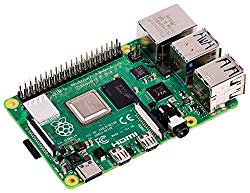
I suggest adding to your shopping chart all needed hardware so that at the end you will be able to evaluate overall costs and decide if continue with the project or remove them from the shopping cart. So, hardware will be only:
- Raspberry PI Computer Board (including proper power supply or using a smartphone micro USB charger with at least 3A) or
- Bluetooth Headphones (I used a very old model, so it should work with newer ones)
- high speed micro SD card (at least 16 GB, at least class 10)
Check hardware prices with the following links:
Step-By-Step Guide
Install OS
We’ll start from standard Raspberry PI OS Lite installation with WiFi and ssh enabled. So every command within the following paragraphs will be issued via ssh remote connection.
Be sure to have your OS up to date:
sudo apt update -y && sudo apt full-upgrade -yAdding Pi To Bluetooth Users
This fix helps to use audio files from the default pi user, without having to elevate privileges for each Bluetooth action. Simply use the following command to add the pi user to the Bluetooth group:
sudo usermod -G bluetooth -a piNow logout/login or reboot to have this change running:
sudo reboot nowInstall Bluealsa and Pulseaudio Module
This module will be useful later for the interface Bluetooth:
sudo apt-get install bluealsa pulseaudioSAP Driver Initialization Failure
The first issue comes from SAP (SIM Access Profile) driver initialization. If you check the Bluetooth service starting status:
sudo systemctl status bluetooth.serviceyou should find the following:
● bluetooth.service - Bluetooth service
Loaded: loaded (/lib/systemd/system/bluetooth.service; enabled; vendor preset: enabled)
Active: active (running) since Mon 2020-01-06 21:15:56 GMT; 2min 57s ago
Docs: man:bluetoothd(8)
Main PID: 424 (bluetoothd)
Status: "Running"
Tasks: 1 (limit: 2200)
Memory: 2.7M
CGroup: /system.slice/bluetooth.service
└─424 /usr/lib/bluetooth/bluetoothd

Jan 06 21:15:56 raspberrypi systemd[1]: Starting Bluetooth service...
Jan 06 21:15:56 raspberrypi bluetoothd[424]: Bluetooth daemon 5.50
Jan 06 21:15:56 raspberrypi systemd[1]: Started Bluetooth service.
Jan 06 21:15:57 raspberrypi bluetoothd[424]: Starting SDP server
Jan 06 21:15:57 raspberrypi bluetoothd[424]: Bluetooth management interface 1.14 initialized
Jan 06 21:15:57 raspberrypi bluetoothd[424]: Sap driver initialization failed.
Jan 06 21:15:57 raspberrypi bluetoothd[424]: sap-server: Operation not permitted (1)
Jan 06 21:15:57 raspberrypi bluetoothd[424]: Failed to set privacy: Rejected (0x0b)
The “Sap driver initialization failed.” notices that something is going wrong on startup. This can be fixed simply by stopping the SIM profile loading. With your favourite text editor (mine one is nano), modify “/lib/systemd/system/bluetooth.service” file to add “–noplugin=sap” option near “ExecStart=/usr/lib/bluetooth/bluetoothd” configuration:
sudo nano /lib/systemd/system/bluetooth.serviceand make sure that your one appears like the following (just adding –noplugin=sap as mentioned above):
[Unit]
Description=Bluetooth service
Documentation=man:bluetoothd(8)
ConditionPathIsDirectory=/sys/class/bluetooth

[Service]
Type=dbus
BusName=org.bluez
ExecStart=/usr/lib/bluetooth/bluetoothd --noplugin=sap
NotifyAccess=main
#WatchdogSec=10
#Restart=on-failure
CapabilityBoundingSet=CAP_NET_ADMIN CAP_NET_BIND_SERVICE
LimitNPROC=1
ProtectHome=true
ProtectSystem=full

[Install]
WantedBy=bluetooth.target
Alias=dbus-org.bluez.service
Now reboot
sudo reboot nowPrivacy Setting Rejected Failure
Once rebooted, a new check on the Bluetooth service status shows that the third error is still occurring. Command:
sudo systemctl status bluetooth.serviceshould give you:
● bluetooth.service - Bluetooth service
Loaded: loaded (/lib/systemd/system/bluetooth.service; enabled; vendor preset: enabled)
Active: active (running) since Mon 2020-01-06 21:38:05 GMT; 3min 9s ago
Docs: man:bluetoothd(8)
Main PID: 424 (bluetoothd)
Status: "Running"
Tasks: 1 (limit: 2200)
Memory: 2.7M
CGroup: /system.slice/bluetooth.service
└─424 /usr/lib/bluetooth/bluetoothd --noplugin=sap

Jan 06 21:38:04 raspberrypi systemd[1]: Starting Bluetooth service...
Jan 06 21:38:05 raspberrypi bluetoothd[424]: Bluetooth daemon 5.50
Jan 06 21:38:05 raspberrypi systemd[1]: Started Bluetooth service.
Jan 06 21:38:05 raspberrypi bluetoothd[424]: Starting SDP server
Jan 06 21:38:05 raspberrypi bluetoothd[424]: Excluding (cli) sap
Jan 06 21:38:05 raspberrypi bluetoothd[424]: Bluetooth management interface 1.14 initialized
Jan 06 21:38:05 raspberrypi bluetoothd[424]: Endpoint registered: sender=:1.6 path=/org/bluez/hci0/A2DP/SBC/Source/1
Jan 06 21:38:05 raspberrypi bluetoothd[424]: Endpoint registered: sender=:1.6 path=/org/bluez/hci0/A2DP/SBC/Source/2
Jan 06 21:38:05 raspberrypi bluetoothd[424]: Failed to set privacy: Rejected (0x0b)
A simple restart of the Bluetooth service solves this problem, but the solution is only temporary until a new reboot comes. The solution for this is editing “/lib/systemd/system/bthelper@.service” file to add the “ExecStartPre=/bin/sleep 2” configuration. For this solution, credits go to Ben Windsow on https://github.com/RPi-Distro/pi-bluetooth/issues/8#issuecomment-480270680. So open the above file:
sudo nano /lib/systemd/system/bthelper@.serviceand make it the same as the following:
[Unit]
Description=Raspberry Pi bluetooth helper
Requires=bluetooth.service
After=bluetooth.service

[Service]
Type=simple
ExecStartPre=/bin/sleep 2
ExecStart=/usr/bin/bthelper %I
Reboot again and now everything should be ok with sudo systemctl status bluetooth.service.
Check That Pulseaudio Is Running
The next step and one of the most common issues is that, when attempting Bluetooth connection, Pulseaudio is not running. So, before proceeding to Bluetooth pairing, please check that it is running.
Type, from the terminal window, the following command:
ps aux | grep pulseaudioIf this command returns the following output:
pi@raspberrypi:~ $ ps aux | grep pulseaudio
pi 538 0.0 0.0 7348 504 pts/0 S+ 22:01 0:00 grep --color=auto pulseaudio
then you must manually launch pulseaudio:
pulseaudio --startso that you should see the correct status from ps aux | grep pulseaudio command:
pi@raspberrypi:~ $ ps aux | grep pulseaudio
pi 544 4.3 1.8 181592 17720 ? Sl 22:02 0:00 pulseaudio --start
pi 564 0.0 0.0 7348 488 pts/0 S+ 22:02 0:00 grep --color=auto pulseaudio
Pair Bluetooth Device
Finally, we can try that everything really works. Let’s configure Bluetooth (note that I don’t use sudo because the pi user has been added to the Bluetooth group). First of all, consider that my headphones address is 00:25:DB:78:86:98, but in your case will depend on your hardware.
Set in pairing mode your Bluetooth headphones according to their user guide. Go to the terminal.
Command:
bluetoothctlExpected output:
pi@raspberrypi:~ $ bluetoothctl
Agent registered
[bluetooth]#
Command:
power onExpected output:
[bluetooth]# power on
Changing power on succeeded
Command:
agent onExpected output:
[bluetooth]# agent on
Agent is already registered
Command:
default-agentExpected output:
[bluetooth]# default-agent
Default agent request successful
Command:
scan onExpected output:
[bluetooth]# scan on
Discovery started
[CHG] Controller B8:27:EB:23:73:DF Discovering: yes
[NEW] Device 00:25:DB:78:86:98 BTC7
The first row is RPI onboard Controller. My headphones are listed in the second row.
Command (remember to change my Headphones address with your one from the following command to the end!!!):
pair 00:25:DB:78:86:98Expected output:
[bluetooth]# pair 00:25:DB:78:86:98
Attempting to pair with 00:25:DB:78:86:98
[CHG] Device 00:25:DB:78:86:98 Connected: yes
[CHG] Device 00:25:DB:78:86:98 UUIDs: 00001108-0000-1000-8000-00805f9b34fb
[CHG] Device 00:25:DB:78:86:98 UUIDs: 0000111e-0000-1000-8000-00805f9b34fb
[CHG] Device 00:25:DB:78:86:98 ServicesResolved: yes
[CHG] Device 00:25:DB:78:86:98 Paired: yes
Pairing successful
[CHG] Device 00:25:DB:78:86:98 ServicesResolved: no
[CHG] Device 00:25:DB:78:86:98 Connected: no
Command:
trust 00:25:DB:78:86:98Expected output:
[bluetooth]# trust 00:25:DB:78:86:98
[CHG] Device 00:25:DB:78:86:98 Trusted: yes
Changing 00:25:DB:78:86:98 trust succeeded
Command:
connect 00:25:DB:78:86:98Expected output:
[bluetooth]# connect 00:25:DB:78:86:98
Attempting to connect to 00:25:DB:78:86:98
[CHG] Device 00:25:DB:78:86:98 Connected: yes
Connection successful
[CHG] Device 00:25:DB:78:86:98 ServicesResolved: yes
Now your Bluetooth connection with your headphones is ready!
You will need to connect your Bluetooth device at each connection. Otherwise, add the following line in your /etc/rc.local file, before the final “exit 0” row:
bluetoothctl connect 00:25:DB:78:86:98(and, of course, the Bluetooth device will need to be powered on before Raspberry PI boots).
Test Your Headphones
From the terminal, play audio example files (remember to use your headphones or Bluetooth speakers address instead of mine!):
aplay -D bluealsa:DEV=00:25:DB:78:86:98,PROFILE=sco /usr/share/sounds/alsa/Front_Center.wavYou can also record your own test:
arecord -D bluealsa:DEV=00:25:DB:78:86:98,PROFILE=sco test.wavand listen to it
aplay -D bluealsa:DEV=00:25:DB:78:86:98,PROFILE=sco test.wavto check both audio transmission and reception.
Now you should be able to correctly connect your Bluetooth headphones / Bluetooth speakers with your Raspberry PI.
The final step is using a common player to listen to files like .mp3. This will require creating a default bluealsa profile and to specify in your player command options what output device it should use.
The default bluealsa profile can be arranged by creating a .asoundrc file in the pi default folder:
nano .asoundrcIn this file, use the following lines (changing Bluetooth address with your one):
defaults.bluealsa.interface "hci0"
defaults.bluealsa.device "00:25:DB:78:86:98"
defaults.bluealsa.profile "sco"
defaults.bluealsa.delay 10000
Save and exit. If you want to use omxplayer, you can install it with the following command:
sudo apt install omxplayerYou will need the following simple command:
omxplayer -o alsa:bluealsa file_example_MP3.mp3Next Steps
If you are interested in more Raspberry PI projects (both with Lite and Desktop OS), take a look at my Raspberry PI Tutorials.
Enjoy!

Open source and Raspberry PI lover, writes tutorials for beginners since 2019. He's an ICT expert, with a strong experience in supporting medium to big companies and public administrations to manage their ICT infrastructures. He's supporting the Italian public administration in digital transformation projects.








don’t think you need pulseaudio here
bluealsa is able to connect without pulse.
Also both working together is not recommended
This solution worked for me for the 27 May 2020 RasPiOS build that was not working. THANK YOU for this solution!
I ran through these instructions and at the end i get no sound.
Not sure what to do at this point.
Hi Douglas.
Bluetooth is really hard to work in Raspbian Lite and results can change from device to device. I’m going to write you to try more help in troubleshooting.
I have never been able to get sound out of 2 different RPi 3s via BT now and have tried everything I can find online for the last two years now.
I am beginning to disbelieve it works for anybody.
Multiple different speakers always pair, and then connect, and are able to be seen from the pi but no sound ever comes out of the speakers.
There must be another mixer setting, or switch to enable BT output.
….Larry
Hi Larry,
thank you for your feedback. With my CellularLine bluetooth headset I also had to work hard to make it working. Some keys which gave me results:
– check pulseaudio is working: even if installed, pulseaudio could be not running. Once started, verify that its process is alive
– bluetooth pairing seems to be working easily in Rasbpian Lite. But check – when you connect a device – that it remains connected
– aplay worked to me with sco profile and a wav file previously recorded with same library and “arecord” command. so try this way first. If your device is an “output only” one, try downloading a wav file or let me know to generate one and make it available to you in my download area
A different solution is listed in Gus comment. You can also try this one.
If you have still problems, feel free to mail me (my contacts are in my Info page)
Thanks for your reply.
I did some noise out of the speaker using the PROFILE=A2DP in the aplay command line. The .wav file sounded like it was playing at about 1/10 speed, and the .mp3 file did output some random noise. This indicates most things are working, so far.
Every other attempt no sound will come out of the speaker. Today I have rechecked pulseaudio is running but still no sound. Using A2DP or SCO I get silence until after about 45 seconds I get aplay kicking back with
aplay: main:828: audio open error: no such device
The speaker still hasn’t reported “disconnecting Bluetooth” at that point so the connection is still valid from the speaker’s point of view. Pulseaudio is still showing running in the ps list.
This is the same results I got many times with the Alexa speaker also. They pair, connect and everything seems OK but will never produce sound.
I wrote some pythin3 code to open a socket via BT and the speaker reports paired, and connected. Same thing with it. After trying many methods with Alexa and GH “right out of the book”, I assumed those brands would not allow other brands to interoperate with them.
This tiny speaker I am using now connects and plays music from my Samsung S7, and my laptop, just fine. Something is missing on these RPi methods yet. Maybe I need to connect up a monitor and KB for a RPi desktop trial to prove it isn’t just a Raspbian command line thing
**SIGH**
If you are receiving some sound (even if a simple noise), this is a good signal: this means that bluetooth is paired and connected. This also could mean that in this moment you could have a simple coding problem. So, your next test it the one you are going to do: try with a deskop version able to let you have also more advanced music applications (like the famous vlc player) which are more likely to have a complete library for media decoding.
Another trik: in terminal, you should be able to use “alsamixer” command, which enables a terminal console to manage volume for your audio devices.
Thanks. The alsamixer only shows analogue devices, namely just one.
The noise indicates the volume is loud enough. I’ll have to make a bench setup to get a monitor and kb on this Rpi. I would even be happy just to use a simple earphone jack speaker for this application but having trouble finding one of them too. They have incorporated video into the same jack making it non-standard.
With xrdp you can control your Raspbian Desktop from Windows Remote Desktop, installing it in headless mode (without monitor and keyboard). Please try this guide: Install Raspberry PI OS Desktop (with optional Remote Desktop)
same and i cant fix it! can anyone help me undo this?
Hi kendun,
undo-ing it is simple:
– sudo nano /lib/systemd/system/bthelper@.service
-> remove “ExecStartPre=/bin/sleep 2″ row
– sudo nano /lib/systemd/system/bluetooth.service
-> remove ” –noplugin=sap” option
– sudo apt-get purge bluealsa pulseaudio
Just for curiosity, are you getting errors or simply you can’t get sound?
Awesome post thank you. I followed it and I have a few suggestions for improvements after having tried (and retried on a brand new SD card) the steps myself:
1- I started with a fresh Pi Zero W, with a brand new Raspbian Lite (buster) installation
2- I didn’t have to install PulseAudio. BlueAlsa alone worked. I skipped the section “Check That Pulseaudio Is Running” altogether
3- For convenience, I created a file .asoundrc in my home directory for convenience, it included a profile called “bluealsa” that I referred to from the media players command line (see below)
# Bluetooth headset
defaults.bluealsa {
interface “hci0” # host Bluetooth adapter
# device “AA:00:A7:00:B8:D4” Vidonn – doesnt support A2DP! Commenting out
device “D0:8A:55:08:FC:BE”
profile “a2dp”
}
4- I learned that “SCO” and “A2DP” refer to the possible ‘services’ that your bluetooth audio device supports. If you have a speaker or high end headphones, they likely support A2DP . If they’re simple telephone headsets (like my Vidonn bone conduction headphones) they do not support A2DP but rather SCO (which is optimized for VOIP calls). They’re called “profiles”, replace SCO with A2DP where necessary.
5- aplay expects a wav file, not an mp3 file 🙂 I jumped from my seat when aplay started playing the encoded data found in the mp3 file into my headphones (it was all noise)
6- for omxplayer to be able to play over bluetooth you need to call it like the following (I wanted omxplayer because I needed to play video, not just audio). “bluealsa’ here refers to the name of the profile created inside the ~/.asoundrc file like I described above: omxplayer -o alsa:bluealsa
Hi!
Thanks so much for this post. It really saved me.
SCO works for my buetooth speaker
and a2dp for my headphones!
Cheers.*
Glad to have been helpful
I setup the .asoundrc as you suggested and that works fine for omxplayer. Any thoughts on how to get SoX to use the bluetooth output?
Thanks. I followed your instructions, then my Jabra BT2080 works fine on my pi3 B+.
I skipped chapter “Check That Pulseaudio Is Running”. Pulseaudio is not necessary here.
AWESOME!! Thanks a lot for this post. It worked for me.
Thank you, Gama, for your feedback!
pi@raspberrypi:~ $ sudo systemctl status bluetooth.service
● bluetooth.service – Bluetooth service
Loaded: loaded (/lib/systemd/system/bluetooth.service; enabled; vendor preset
Active: active (running) since Sun 2020-06-28 11:36:45 EDT; 2min 34s ago
Docs: man:bluetoothd(8)
Main PID: 607 (bluetoothd)
Status: “Running”
Tasks: 1 (limit: 4915)
Memory: 2.1M
CGroup: /system.slice/bluetooth.service
└─607 /usr/lib/bluetooth/bluetoothd –noplugin=sap
Jun 28 11:36:45 raspberrypi bluetoothd[607]: Bluetooth daemon 5.50
Jun 28 11:36:45 raspberrypi systemd[1]: Started Bluetooth service.
Jun 28 11:36:45 raspberrypi bluetoothd[607]: Starting SDP server
Jun 28 11:36:45 raspberrypi bluetoothd[607]: Excluding (cli) sap
Jun 28 11:36:45 raspberrypi bluetoothd[607]: Bluetooth management interface 1.14
Jun 28 11:36:45 raspberrypi bluetoothd[607]: Endpoint registered: sender=:1.24 p
Jun 28 11:36:45 raspberrypi bluetoothd[607]: Endpoint registered: sender=:1.24 p
Jun 28 11:37:03 raspberrypi bluetoothd[607]: Endpoint registered: sender=:1.45 p
Jun 28 11:37:03 raspberrypi bluetoothd[607]: Endpoint registered: sender=:1.45 p
Jun 28 11:37:03 raspberrypi bluetoothd[607]: RFCOMM server failed for Headset Vo
##########################
RFCOMM server failed for Headset Vo
##########################
Everything went smooth until very last step, then I got the error mentioned above.
Any ideas about this issue?
Hi joseph. Your error seems to be truncated. Please check with journalctl -xe for complete error label
Hello! Thanks for the article. I have been following youness’s article but still not successful.
So my main question is DOES THIS WORK WITH HFP PROFILE HEADPHONES? Because all the Pulseaudio related articles talk about using ofono with hfp profiles, which is proving to be another headache. Please let me know if it works.
Thanks
Hi Ebrahim. I’ll try to test it as soon as possible. Bluetooth world has a number of different hardware and profiles so huge that procedures working with some hardware could have issue with different hardware.
In the meanwhile, you could try with a Raspberry PI OS Desktop, so having other packages that could visually help you.
Very good tutorial. I prefer setup without pulseaudio.
U are God!!!!
So I went all the way through the tutorial and got to the end, ran the tests and the audio came through and the recording worked. However, I cannot use it for anything else (browser, app ect.) Is this expected or did I do something weird?
Hi,
I just added a final section explaining how to use a common player (like omxplayer). What is important (and changes from app to app) is that you need to tell your software which output audio device use, pointing to bluealsa. In omxplayer it can be done with “-o” option. also defining tha .asoundrc file simplify bluealsa usage because it point by default to correct configuration.
Hi All,
For me bluetooth devices, either headsets or speakers were connecting successfully on various distros like ubuntu, raspbian or mate. However what I couldn’t achieve till date is utilizing the microphone of those bluetooth headsets. The headset was always connected for sound output. Though the bluetooth device shows in volume control gui, however I can’t record any voice through it. Getting frustrated now as I referred multiple solutions and all failed. Any help would be highly appreciated. This is the only thing which is pending in my issue list for raspberry pi which I have prepared for my day to day task which is online web-browsing and classes. And finding resolution would reduce the need of cable management and system can be set with fixed output and input from bluetooth headset.
Hi,
did you try with arecord command from this guide?
HI,
Thanks for quick response. However, while looking at other solutions available online, I messed up with bluetooth config files and is now not able to connect with my handsfree. Would do a fresh install again and would update with results of your input.
I’ve gone thorugh and completed the entire tutorial and have success with the test wav file, though when i try to use chromium or other programs the sound will default out te HDMI rather than go to the headphones. I dont want to disable HDMI sound as this is what i normally use, i would just like it to be able to switch for youtube videos. the sound is execllent through a2dp in the test.
How to make these profiles appear on alsa-mixer and pactl list cards? They do not appear by default, and show only the HDMI and aux profiles
Great tutorial, Thanks! It worked out of the box on my RPi 3B+ with Buster 10.7 and retropie 4.7.2.
With one exception: with A2DP, sound is stuttering horribly. SCO works but sounds like I have a tin can speaker 😉 Disabling WiFi didn’t help. Any ideas how I could solve this?
As for retropie: I cannot seem to find how to configure the ‘alsa:bluealsa’ PCM device in EmulationStation/RetroArch. Is that because this is a virtual driver? Suggestions, anyone?
BTW retropie audiosettings destroys ~/.asoundrc. Oops. Somehow, installing bluealsa & pulseaudio caused all sound output to go to the jack, not to my previously configured HDMI. In trying to correct that, my bluealsa settings where overwritten. Fixed that, but still no HDMI audio.
So, that’s three questions in one. Biggest thing is the stuttering A2DP. Any suggestions would be greatly appreciated!
Note: I did not need to run ‘pulseaudio –start’ as more commenters suggested. I was already wondering why you didn’t include a ‘run-at-boot’ script for that 😉
Versions:
pulseaudio 12.2-4+deb10u1+rpi2
bluealsa 0.13
bluez 5.50-1.2~deb10u1+rpt2 (as installed by retropie)
Motherfucking genius – you fixed my 20.x ubuntu bluetooth problem with this. THANKS
Just to let y’all know: I fixed 2 of the 3 problems. A2DP still stutters really bad; no progress there. I found no hints when searching for it on the web. My guess is a buffer size needs to be increased, but which & how?
As for bluealsa, the following will enable BT output in RetroArch: add to, e.g., /opt/retropie/configs/all/retroarch.cfg a line
audio_device = “bluealsa:DEV=11:AA:BB:CC:DD:EE,PROFILE=sco”
with your own MAC. Unfortunately, this requires hardcoding your BT headset id..
I did not succeed in getting BT output to work in non-retroarch emulators like openmsx, scummvm & dosbox. As ‘sco’ (16kHz mono) does not provide a very pleasant gaming experience, I didn’t investigate further, but any suggestions would still be appreciated nevertheless!
I solved my HDMI vs. headphones output with a simple ‘sudo raspi-config’ > System Options > Audio > choose HDMI or headphones. This in turn edited ~/.config/pulse/-default-sink with the value ‘alsa_output.platform-bcm2835_audio.digital-stereo’ (when choosing HDMI).
Hi Cayce. Thank you for your feedback.
Regarding stuttering, I’ve discovered that some Raspberry PI users (expacially for PI3 B+) noted same problem when using togeher both bluetooth and WiFi. This is related to not perfect broadcom/cypress boards integration. Somu users on GitHub referred a solution from Cypress with following steps:
1) Locate your “NVRAM” text file – it’s in /lib/firmware/brcm/brcmfmac-sdio.txt, where is 43430 or 43455 respectively. Make a backup copy somewhere safe to make it easier to undo the changes (or recover from an error).
2) Open the file in a text editor, scroll down to the bottom (purely for neatness – these settings could probably go anywhere) and append the following:
# Experimental Bluetooth coexistence parameters from Cypress
btc_mode=1
btc_params8=0x4e20
btc_params1=0x7530
3) Reboot.
If not, I whould try to test with cable connection instead of WiFi. Please also be sure that your power supply is enought capable (I always suggest a PS able to dry at least 2,5/3 A).
Let me know if these help on solving stuttering problem.
Giuseppe.
Thanks for the hints! (I don’t know howcome I didn’t find that github issue 1402 myself *blush*) But.. My RPi 3B+ (with CYW43455, apparently) already came prebaked with your suggestions, although the comment in /lib/firmware/brcm/brcmfmac43455-sdio.txt now reads:
# Improved Bluetooth coexistence parameters from Cypress.
It seems those ‘experimental’ parameters have been accepted ;-).
I already tried disabling WiFi before I contacted you, but it did make me rethink all usage of WiFi and BT in my installation. I realized I was using cwiid (wminput) for connecting a WiiMote. Bingo! Killing that process removes the stutter. cwiid is unmaintained – maybe I’d better replace it with MoltenGamepad and see if that does not hammer BT so much.
I learned 2 new valuable commands in the process:
– ‘sudo ip link set wlan0 down’ to kill WiFi (‘ifdown wlan0’ does not work anymore in recent versions of Linux/Raspbian)
– ‘hciconfig -a | grep bytes’ – a poor man’s BT traffic monitor; I could not easily find another tool. blueman and WireShark are mentioned on the web, but GUI-oriented and kinda heavy for my RPi.
I hope others can benefit from my experiences!
Thank you for your hints!
Thanks for your post I have applied to build my own project.
It is a audio bluetooth transmitter based on a pi zero W.
The audio comes from an USB microphone (mono I guess, through a cheap USB audio adapter like https://www.amazon.com/Adapter-Raspberry-external-headphone-microphone/dp/B01I5P3POO)
I can here sound played by the VLC on the bluetooth speaker. The problem I have now is
first : to route audio in (micro) to audio out (bluetooth device) : how can I set this connection stable and permanent, without delay or buffering (if possible)
second : to make the system working after boot without any more user action (in CLI mode, no desktop required). I have only one bluetooth headset to connect to and “forget”. No other appli running.
It could help a lot if you have any advice or link/tuto to reveal.
Thanks a lot guys.
Hi there,
I got error when try to pair my speaker. The Bluetooth see it, but can’t pair it.
https://i.imgur.com/sC54cxR.png
This error seems to say that your speaker appears to RPI already paired, so you should try to connect. Consider that your OS is a Desktop version, for this reason some addctional bluetooth/audio package could “interfere”. This tutorial has been written for RPI OS Lite
Great Article: All works well! But one thing I was not able to figure out: audio volume control! Tried amixer and pactl or pavolume.sh script. Can see the change in volume but the sound level is always the same. pls adv!
PS. My project is to transmit blinker set tone of my motorcycle direct into my helmet ( Pi Zero detecting blinker switch and sending warntone via bluetooth to the second channel of my freecom 4 bluetooth kit from cardo). Cool, indeed, true?
Hi Theodor,
I would check only at alsamixer levels, but I understand you have already done it. I may be wrong, but if this doesn’t work I suspect that differently from a wired solution, where higher volume means higher signal power, with a bluetooth connection the volume level depends only on bluetooth final device (your headphones).
HI ,
Thank you for this article, i am fresh user for Raspberry Pi, i just buy Raspberry Pi 4(8 GB) and i need to connect headphone, i prefer it to be bluetooth but at the same time i very worried if the connection is not working.it is about my gradution project.So can you give advaice about buying bluetooth headphone or just normal one.
Hi Bayan, you should be able to use any Bluetooth headset. I can’t recommend a specific one as I created this procedure with a very old headphone from a local brand.
Thank you for this article!
I followed these steps but when I try to pair a device it says:
“[CHG] Controller AA:AA:AA:AA:AA:AA Discoverable: yes”
Seems like the interface is not found…
Also “ps aux | grep pulseaudio” outputs:
“pi 4492 0.0 0.2 251236 21412 ? Ssl 22:56 0:00 /usr/bin/pulseaudio –daemonize=no”
is the “–daemonize=no” a problem?
Any idea how to fix that?
Hi Phil,
The controller … discoverable yes means that you Raspberry PI bluetooth interface is available to be discovered from external devices. You should be messing from your external Bluetooth device to be set in pairing mode. This depends on your external device, please check its user manual
The point is the MAC “AA:AA:AA:AA:AA:AA”, which seems to be a default value when no interface is assigned/correctly working. Actually it should show the MAC of the bt controller, as far as I know.
My device does not find the raspberry anyway.
You are seeing only 1 MAC address, which is the controller one (this is the RPI bluetooth module). If you see in my post, there is a point where is show mine ones:
[CHG] Controller B8:27:EB:23:73:DF Discovering: yes[NEW] Device 00:25:DB:78:86:98 BTC7
First row was my RPI, second row was my bluetooth device (a headphone). You should make your external device discoverable and scan it from Raspberry PI. If you can’t find it, also check supported bluetooth versions for your 2 bluetooth devices. From Raspberry PI side, you can use my Comparison of Raspberry PI Models post
The controller never ever has the MAC AA:AA:AA:AA:AA:AA. This is a kind of dummy.
I just now realized that AA:AA:AA:AA:AA:AA wasn’t to hide your MAC but it is the real result you are getting…
Did you started from a fresh Raspberry PI OS installation or from an existing one? I read in some forums that old Raspbian versions had a similar issue with some Bluez releases.
downgrading the bluez will solve this MAC address problem.
Wow – thanks so much – endless fiddling with this on a fresh install until I read this.
I have a question – you instruct to do a manual start of pulse audio (pulseaudio –start).
It seems there is a disabled pulse.audio service at the user level and when I start it, it works. Should that be set to enable to always start?
Everything seems to work without enabling the service – so I’m not understanding it’s role in this post nor whether it would be good to enable.
Thanks!
Hi djs,
sincerely, some users commented that without pulseaudio should be working. If it works without it, you can leave pulseaudio disabled. I assembled the procedure by a sum of internet posts and this could be not required.
Finally a tutorial that actually worked for me! So glad to have my RPI 3B+ Buster connecting to my A2DP car radio by bluetooth. Thank you so much!
Happy it worked to you too! Thank you for your feedback, Noel
Awesome tutorial. I was able to get completely connected but for some reason when I try to change the output use my bluetooth headphones I get this error:
“Failed to connect to Bluetooth device – Device not found by PulseAudio”
If I look at the bluetooth.service I get this error:
May 07 11:48:23 raspberrypi bluetoothd[829]: Unable to get connect data for Headset Voice gateway: getpeername: Transport endpoint is not connected (107)
Any advice on this problem? I found a guide where someone was having the same issues and someone was putting together a walkthrough on how to fix it but it was never updated. Any help would be greatly appreciated.
Hi Ben,
what happens if you issue a new “connect xx:xx:xx:xx:xx” command in bluetoothctl after changing the output?