
Last Updated on 17th January 2026 by peppe8o

In this tutorial, I’m going to show you how to set the swap memory for Raspberry PI computer boards.
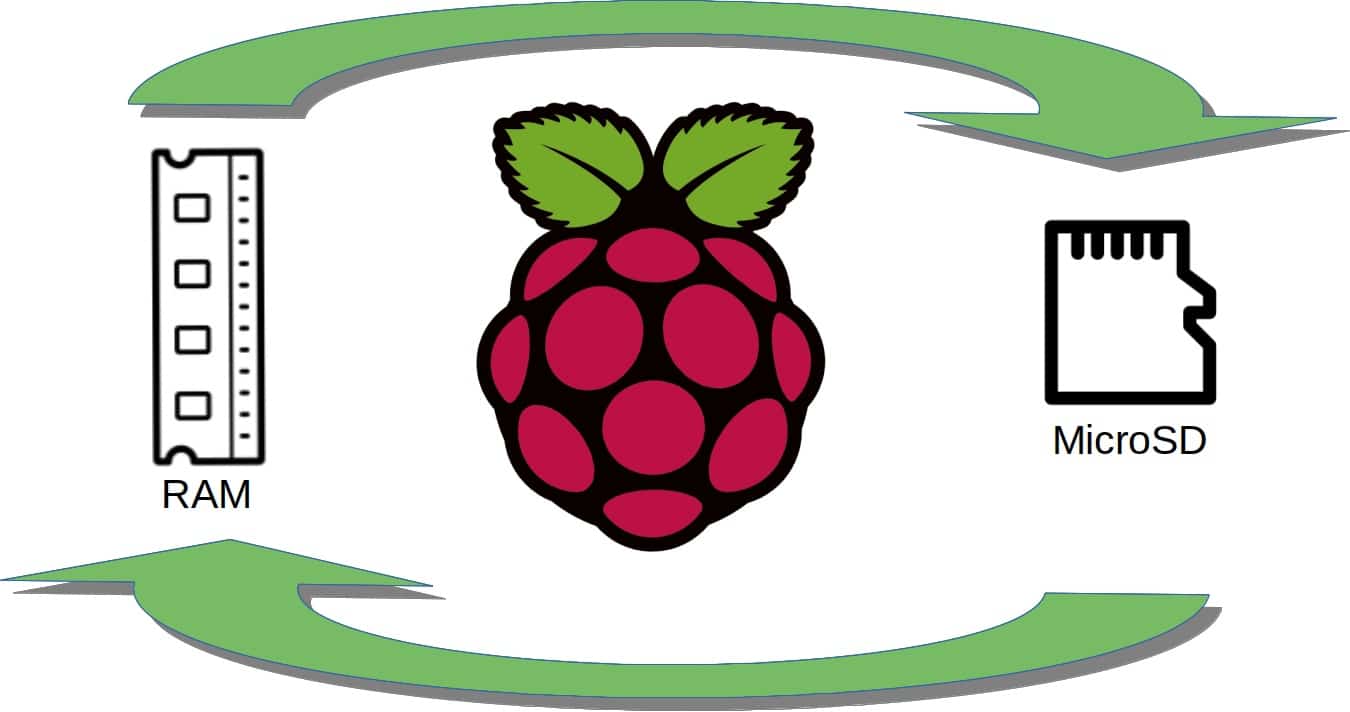
Besides the CPU, RAM is the most valuable resource in every computer. It is where data is stored for running programs, and it is one of the most important resources for applications that manage a large amount of data. Raspberry PI Swap Memory, like other Linux systems, can reduce the small RAM impact, avoiding Out of Memory errors
Swap memory is a file on computer storage dedicated to help RAM when it is not enough to meet the needs of programs. It is a common feature for all Unix-like systems. It plays a very important role in computer stability and performance, as swap memory is used whenever your physical RAM is too small compared to what programs require to manage their data correctly.
Swap Memory Role in a Computer
Common systems have 2 main kinds of resources: processing resources and memory resources.
Processing resources are strictly related to the CPU (Central Processing Unit), and it is strictly based on the kind of processor you have. The only way to work on this side of performance factors, excluding CPU substitution, is overclocking. This means elevating the number of instructions that the CPU can execute each second. But this practice is dangerous for your CPU, until you really know what you are doing.
On the other side, data memory resources can be roughly classified into RAM and storage.
RAM is the fastest memory resource available for every computer. For its performance, all programs try to occupy this memory in order to get results in less time. RAM is also cleaned by the OS at every shutdown, as it can store data only if the computer is powered on.
Storage resources are Hard Disk Drives, Solid State Drives, USB sticks or MicroSD cards (in Raspberry PI case). They are far slower compared to RAM, but they also store data after a computer shutdown. This resource is commonly used by programs to store data once they are consolidated according to code jobs.
For their technology, RAM costs are higher than storage costs.
The common problem is that each program isn’t aware of how much RAM is available between the OS and other concurrent programs. This can lead to “Out of Memory” errors when the total RAM amount required by a system is greater than the physical RAM amount. This is also a common problem for programs managing large amounts of data (like image or video processing applications).
For this reason, Linux systems use a portion of their storage merged with RAM, making programs not aware that they are using storage instead of RAM. This solution can reduce program speed but will avoid memory filling and program interruptions.
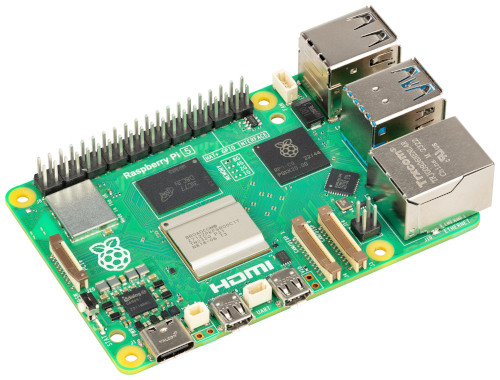
In this guide, I will show you how to set Swap Memory on a Raspberry PI 5 Model B, but this guide should work with any Raspberry PI computer board.
What We Need
As usual, I suggest adding from now to your favourite e-commerce shopping cart all the needed hardware, so that at the end you will be able to evaluate overall costs and decide if to continue with the project or remove them from the shopping cart. So, hardware will be only:
- Raspberry PI Computer Board (including proper power supply or using a smartphone micro USB charger with at least 3A)
- high-speed micro SD card (at least 16 GB, at least class 10)
Step-by-Step Procedure
Prepare Operating System
If not already done, please install Raspberry Pi OS Lite (for a fast, headless OS) or Raspberry PI OS Desktop (in this case, working from its internal terminal).
Make your OS up to date. From terminal:
sudo apt update -y && sudo apt upgrade -yCheck Current Swap Memory
The current swap size and position can be verified in several ways.
Before going on, consider that swap size is usually calculated in MiB (megabytes). When modifying the values in the configuration files, please consider that 1 GiB (giga byte) is equal to 1028 MiB..
The very first way to get the current swap size is to use Debian free -h command:
pi@raspberrypi:~ $ free -h
               total        used        free      shared  buff/cache   available
Mem:           7.9Gi       247Mi       7.5Gi        13Mi       185Mi       7.6Gi
Swap:          2.0Gi          0B       2.0Gi
The last row shows the current swap total space, divided between total, used and free.
Another common way is using the htop command (F10 or CTRL+C to exit):
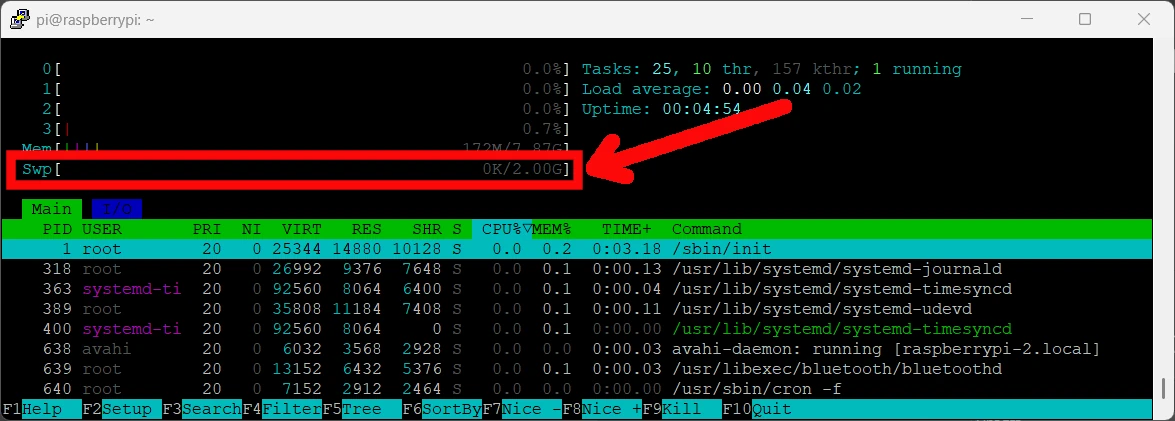
Htop is a useful tool because it shows, besides the swap memory info on the 5th row, also system info and details on running processes in real time.
From the Raspberry PI OS based on Trixie, the Swap memory amount will be changed with a slightly different procedure. In the following chapters, I will give you the procedure for both the Trixie (version 13) and the older version. You can check what OS version is running by using the lsb_release -a terminal command:
pi@raspberrypi:~ $ lsb_release -a
No LSB modules are available.
Distributor ID: Debian
Description:    Debian GNU/Linux 13 (trixie)
Release:        13
Codename:       trixie
Set Raspberry PI Swap Memory Size with Trixie (13): rpi-swap (zram + file)
From Trixie (version 13), by default, the swap memory of Raspberry PI is managed by ZRAM and a file via the rpi-swap process. ZRAM compresses the files for swap into a smaller partition of the current RAM as “first level” of swap, moving the files to the storage only when the RAM space is low or these files are less used.
You can check this setup from the systemctl list-units --type swap terminal command showing the dev-zram0.swap unit:
pi@raspberrypi:~ $ systemctl list-units --type swap
  UNIT           LOAD   ACTIVE SUB    DESCRIPTION
  dev-zram0.swap loaded active active rpi-swap managed swap device (zram+file)
In this case, you can change the swap memory value by editing the swap.conf file:
sudo nano /etc/rpi/swap.confIn this file, you will find 2 main sections: the [file] and [ZRAM], each one controlling the related feature.
The commented MaxSizeMiB will show you the default value set. You can force these values by adding (or enabling) a FixedSizeMiB value in both parts.
So, let’s try to increase the current 2GiB value to 3GiB (3 x 1028 = 3072 MiB) for both the swap file and ZRAM. Please add 2 lines, below [file] and [ZRAM] sections, as follows:
(...)
[File]
FixedSizeMiB=3072
(...)
[Zram]
FixedSizeMiB=3072
(...)
Save and close. Please reboot the Raspberry PI:
sudo rebootAfter the reboot is complete, you can check the new swap memory value:
pi@raspberrypi:~ $ free -h
               total        used        free      shared  buff/cache   available
Mem:           7.9Gi       281Mi       7.5Gi        13Mi       185Mi       7.6Gi
Swap:          3.0Gi          0B       3.0Gi
Set Raspberry PI Swap Memory Size with Bookworm (12) and Previous Versions: dphys-swapfile
The previous Raspberry PI / Debian versions managed the swap memory value with the dphys-swapfile service. Changing swap size requires disabling swap, editing the size, enabling swap and restarting the swap service. All of these actions are done with the following terminal commands.
Disable the swap:
sudo dphys-swapfile swapoffChange swap size in dphys-swapfile. Open this file for editing:
sudo nano /etc/dphys-swapfileIdentify the CONF_SWAPSIZE parameter and change according to your needs. For example, I will change it to 3GiB (1024 x 3):
CONF_SWAPSIZE=3072Exit and save. Enable swap and restart the dphys service:
sudo dphys-swapfile swapon
sudo systemctl restart dphys-swapfile.service
Check that the swap has changed value:
pi@raspberrypi:~ $ free -h
               total        used        free      shared  buff/cache   available
Mem:           7.9Gi       281Mi       7.5Gi        13Mi       185Mi       7.6Gi
Swap:          3.0Gi          0B       3.0Gi
This will also persist after the Raspberry PI reboot.
Next Steps
Interested in more projects with your Raspberry PI? Take a look at peppe8o Raspberry PI computer tutorials pages.
Enjoy!
Resources

Open source and Raspberry PI lover, writes tutorials for beginners since 2019. He's an ICT expert, with a strong experience in supporting medium to big companies and public administrations to manage their ICT infrastructures. He's supporting the Italian public administration in digital transformation projects.







