
This tutorial will show you how to install Odoo on Raspberry PI computer boards with Docker.
Please note that this tutorial will work only on Raspberry PI models with arm64/v8 architecture (from Raspberry PI 3 on) because at the date of this post, the official Odoo image on Docker Hub supports only this CPU architecture.
What is Odoo
Odoo, formerly known as OpenERP, is an open-source enterprise resource planning (ERP) software that offers a suite of business applications to manage and automate various business processes. Odoo provides modules for various business functions, including accounting, inventory management, project management, customer relationship management (CRM), e-commerce, and human resources (HR).
Odoo is built on a modular architecture, which means businesses can choose which modules to use and customise them to suit their specific needs. This makes Odoo highly flexible and adaptable, allowing it to be used by businesses of all sizes and industries.
It has an open-source basis (Community Edition), but its features can be easily expanded by adding modules and third-party apps and integrations. Odoo also has Customer Support and Commercial features to support the needs of all companies.
What We Need
As usual, I suggest adding from now to your favourite e-commerce shopping cart all the needed hardware, so that at the end you will be able to evaluate overall costs and decide if to continue with the project or remove them from the shopping cart. So, hardware will be only:
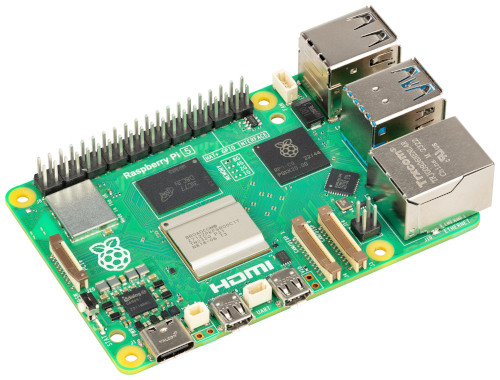
- Raspberry PI Computer Board (including proper power supply or using a smartphone micro USB charger with at least 3A)
- high speed micro SD card (at least 16 GB, at least class 10)
Step-by-Step Guide
Preparing the Operating System
The first step is to install the Raspberry PI OS Lite (I suggest the 64-bit version) to get a fast and lightweight operating system (headless). If you need a desktop environment, you can also use the Raspberry PI OS Desktop, in which case you will work from its terminal app. Please find the differences between the 2 OS versions in my Raspberry PI OS Lite vs Desktop article.
Once installed, please make sure that your OS is up to date. From your terminal, use the following command:
sudo apt update -y && sudo apt full-upgrade -yPlease note that Odoo has a resource-intensive installation process, so a Raspberry PI 3 model B/B+ could result in a timeout error on your browser during the installation process (even if this shouldn’t affect your installation, you may need only to reset the admin password as shown in this post). In this case, increasing the Raspberry PI’s Swap Memory can help to avoid failures.
We also need Docker. For this task, please refer to my Beginner’s Guide to Install and Use Docker with Raspberry PI tutorial.
Installing Odoo on Raspberry PI
We can now proceed with the Odoo installation. Let’s create a folder which will store our configuration files, and enter it:
mkdir odoo
cd odoo/
Let’s create the docker-compose.yaml file which will include all the configuration to create our Odoo infrastructure:
nano docker-compose.yamlPaste the following content into the file. Please note that you can customise the POSTGRES_USER and POSTGRES_PASSWORD values in the db service section, along with the USER and PASSWORD in the web service section. You should leave the POSTGRES_DB=postgres value as is, as I experienced problems during the installation by changing it.
services:
  db:
    image: postgres:latest
    container_name: odoo-db
    environment:
      - POSTGRES_DB=postgres
      - POSTGRES_USER=myOdooUser
      - POSTGRES_PASSWORD=myOdooPwd
    volumes:
      - odoo-db-data:/var/lib/postgresql/data/pgdata
    restart: unless-stopped

  web:
    image: odoo:latest
    container_name: odoo-web
    depends_on:
      - db
    ports:
      - "8069:8069"
    volumes:
      - odoo-web-data:/var/lib/odoo
      - odoo-config:/etc/odoo
      - odoo-addons:/mnt/extra-addons
    environment:
      - HOST=db
      - USER=myOdooUser
      - PASSWORD=myOdooPwd
    restart: unless-stopped

volumes:
  odoo-web-data:
  odoo-config:
  odoo-addons:
  odoo-db-data:
You can close and save the file.
Differently from the official Docker compose file from Odoo, this will add the restart policy for containers (restart: unless-stopped) so that Odoo will automatically restart even after your Raspberry PI’s reboots, unless you manually stop the containers. Moreover, I mapped all the required folders to persistent volumes based on what appears to be important to save across container rebuilds. Finally, this compose script will use the latest versions available on Docker Hub for both PostgreSQL and Odoo.
Now, you can download and install Odoo on Raspberry PI with the following terminal command:
docker compose up -dThis command will download all the required container images (if not already stored in your Raspberry PI) and install them.
The installation will take a while. Once finished, please connect with your browser to the URL composed by your Raspberry PI IP address and the port 8069. In my case, as my Raspberry PI’s IP address is 192.168.1.218, my URL will be http://192.168.1.218:8069.
Set or select the Database
You will see the following initialisation page:
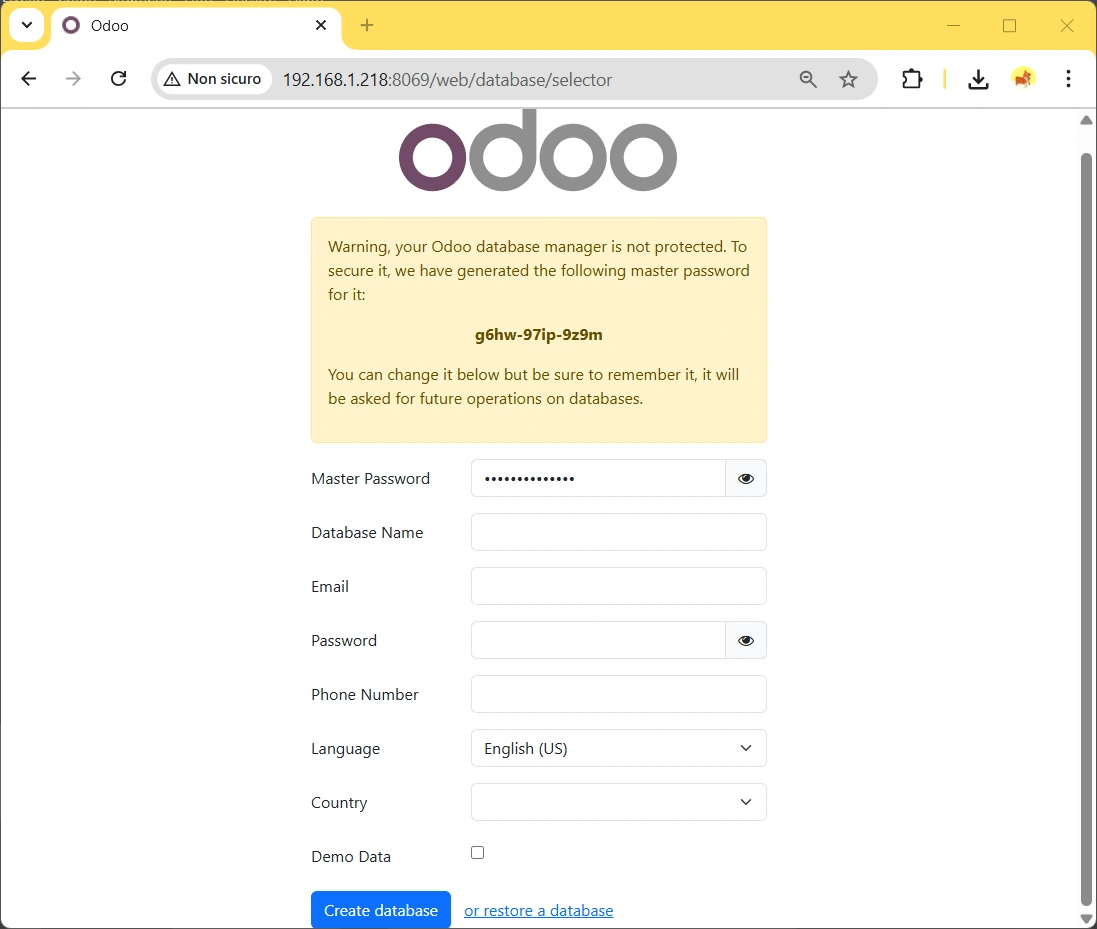
Complete the required fields (at your choice). Please remember to save the Master Password and Database Name in a secure place: you will need it for any database operation (like backup and restore). The remaining fields will relate to the user created to access the web GUI for Odoo.
When finished, please click the “Create Database” button, this will complete the database configuration. Because of the heavy setup process, the page could result in a timeout with older Raspberry PI models. In this case, refresh the browser page.
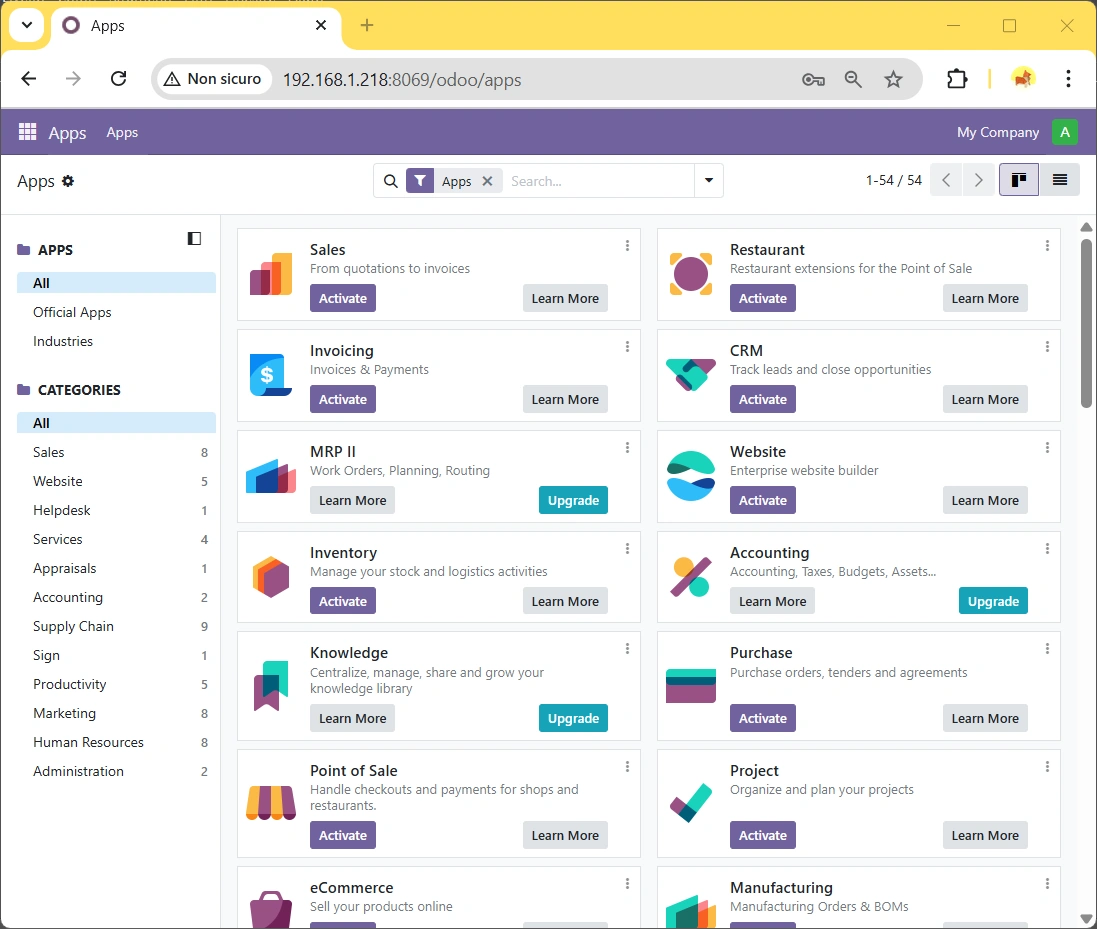
You will reach the Odoo App homepage:
If something went wrong because of the heavy installation, don’t give it up! You can use the admin password recovery procedure.
Getting Started with Odoo on Raspberry PI
As seen, by default, Odoo shows you the Apps list page.
At the top-right of your Odoo dashboard, you will find the menu button that enables you to switch between apps and settings.
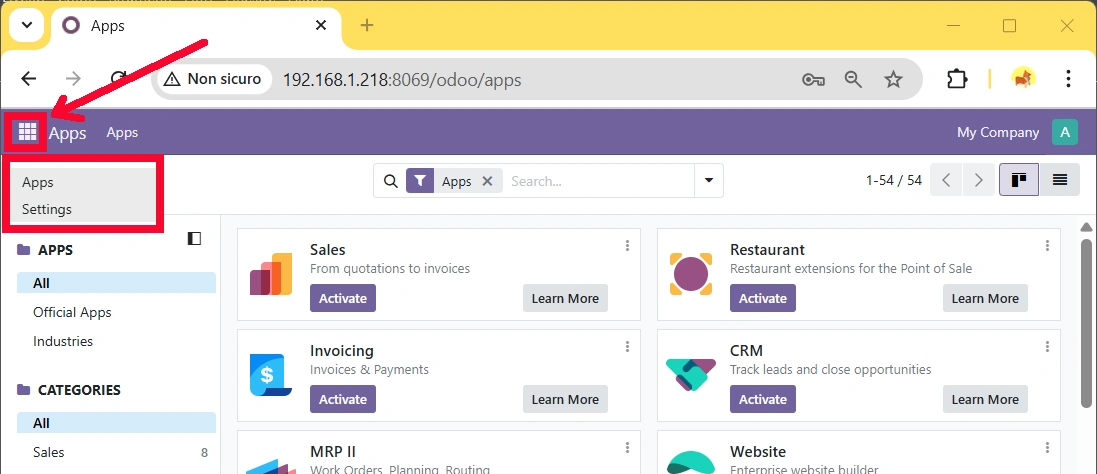
The Apps page is the one we’re coming from. When we install new apps, we’ll find their shortcuts in this menù.
The settings page lets you manage, besides other options, your users and companies.
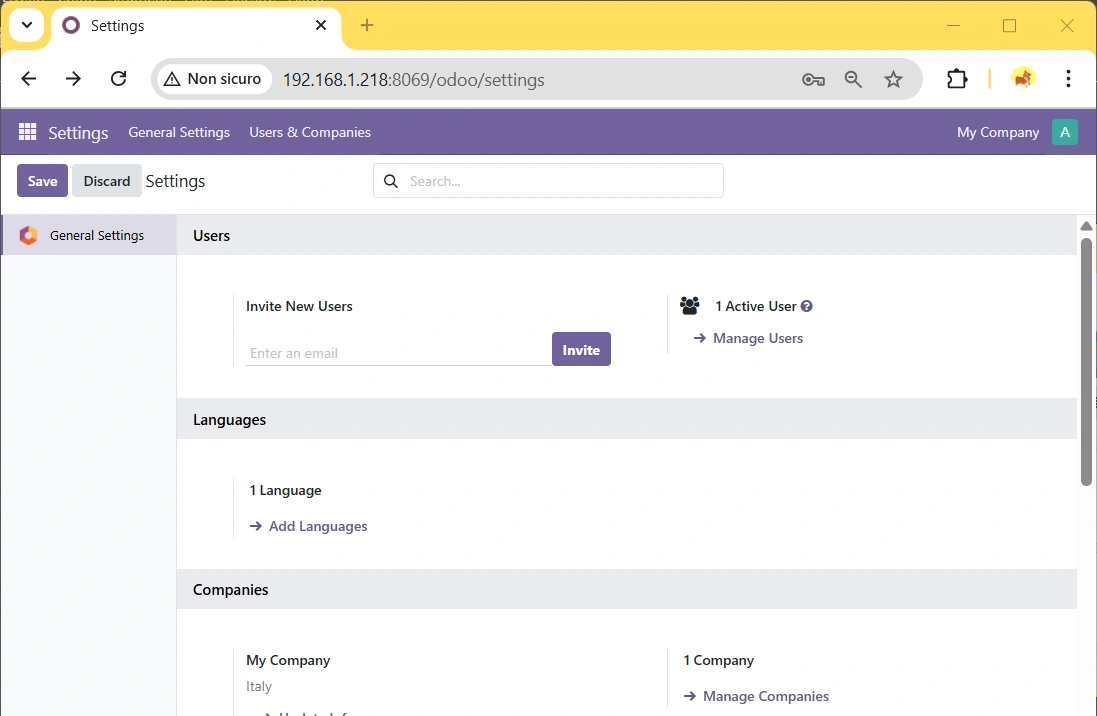
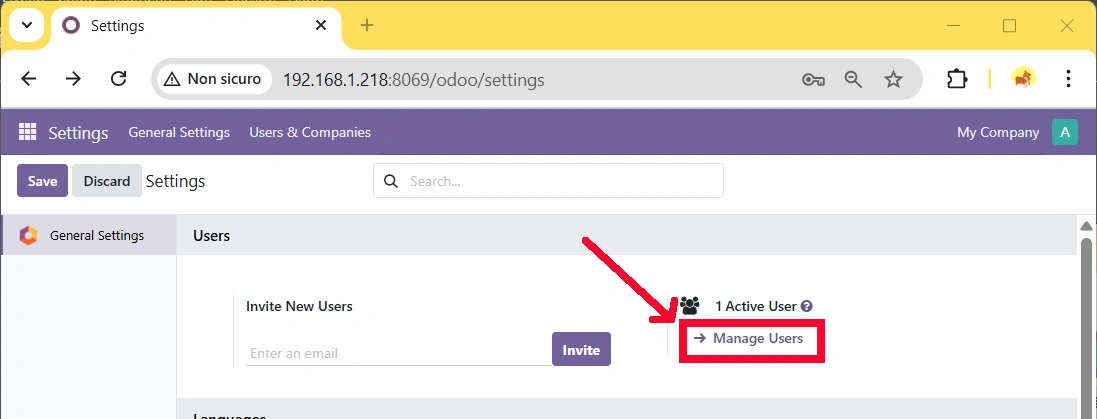
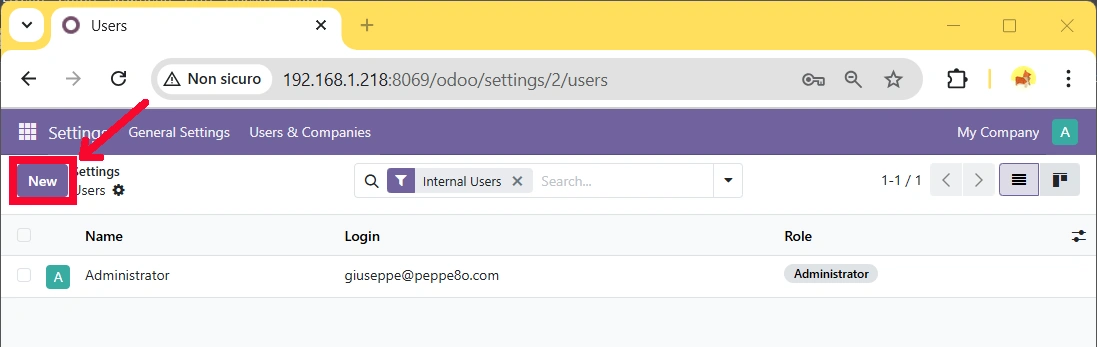
By default, only 1 user is available, and you can add more by clicking the “Manage Users” link, and then the “New” button:
Installing an App in Odoo
Odoo is like an empty box. You must add apps to get features and functionalities.
There are free and paid apps available from the Odoo marketplace (the Apps page). Usually, the paid ones have an “Upgrade” button in their widget, while the free ones have an “Activate” button. Let’s try, for example, to activate the Calendar App.
Back to the App dashboard, identify the Calendar widget:
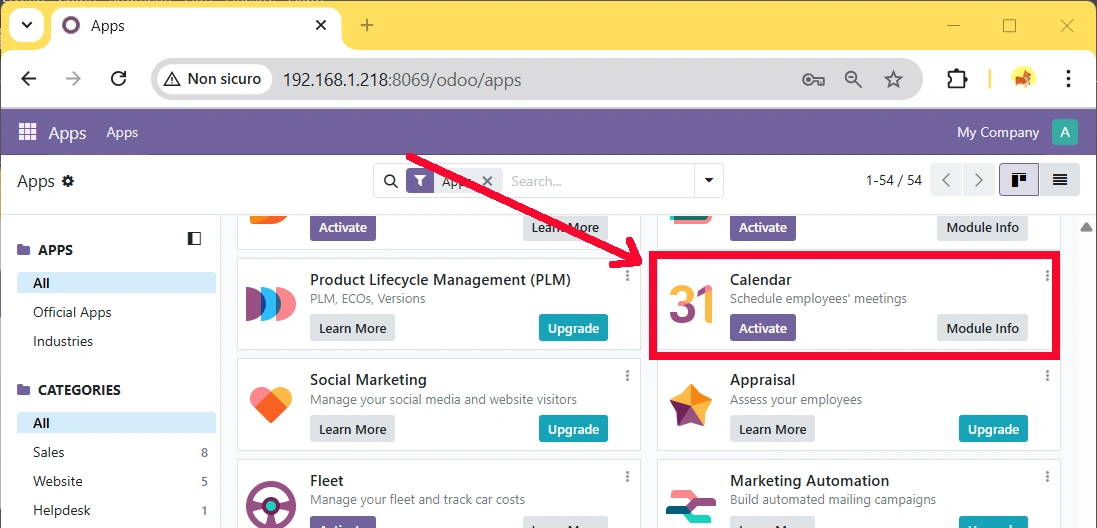
Click the “Activate” button available from the Calendar Widget.
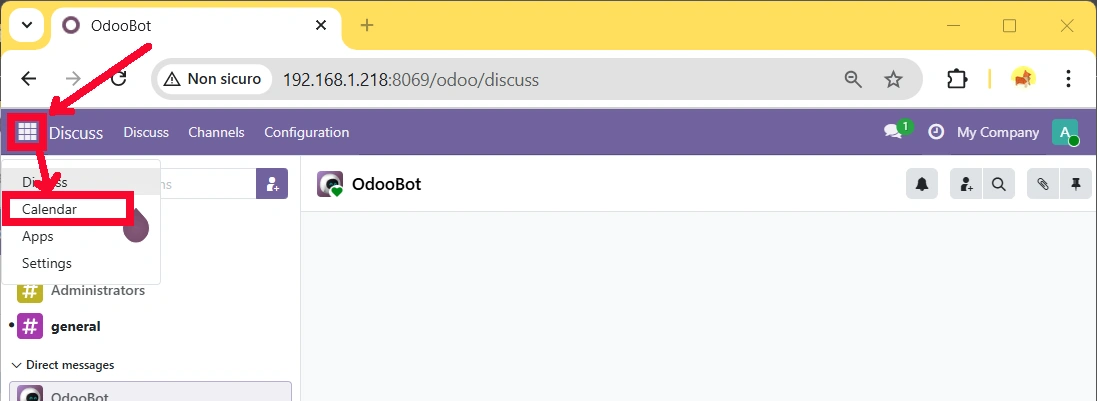
After any App installation, the page will be redirected to the Discuss section, but you will be able to find the new Calendar app from the main menu button:
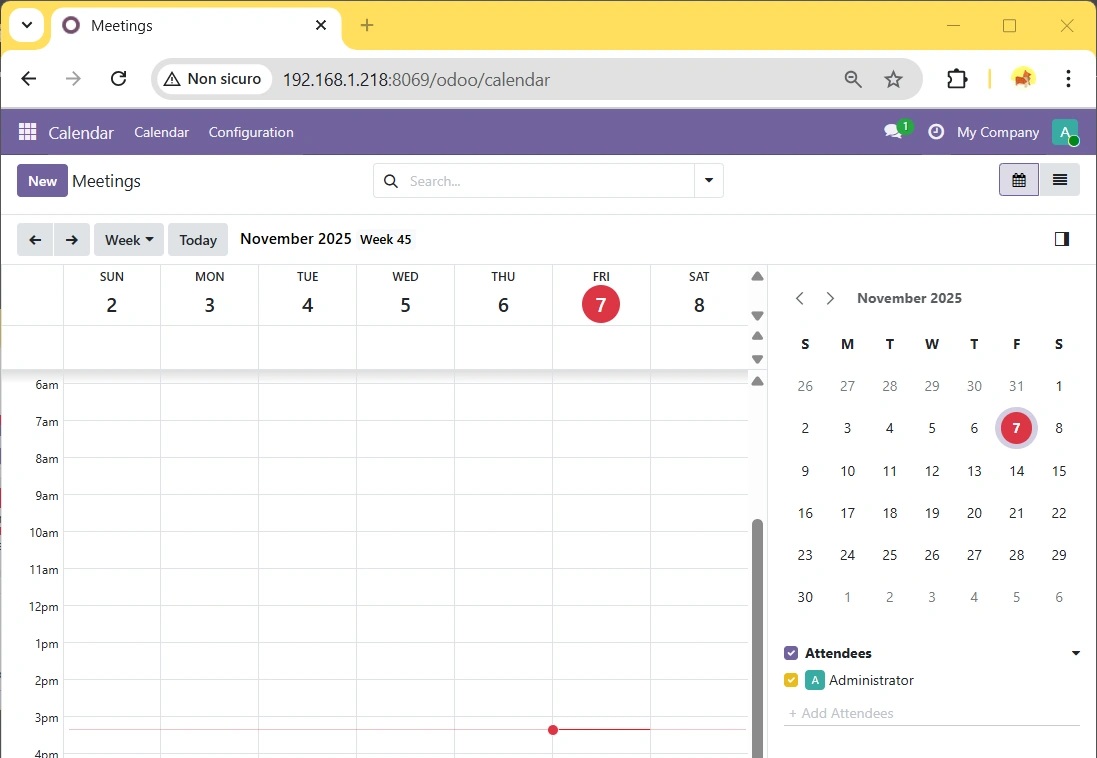
Now, going to the Calendar app, we’ll finally get our calendar page:
Uninstalling an App in Odoo
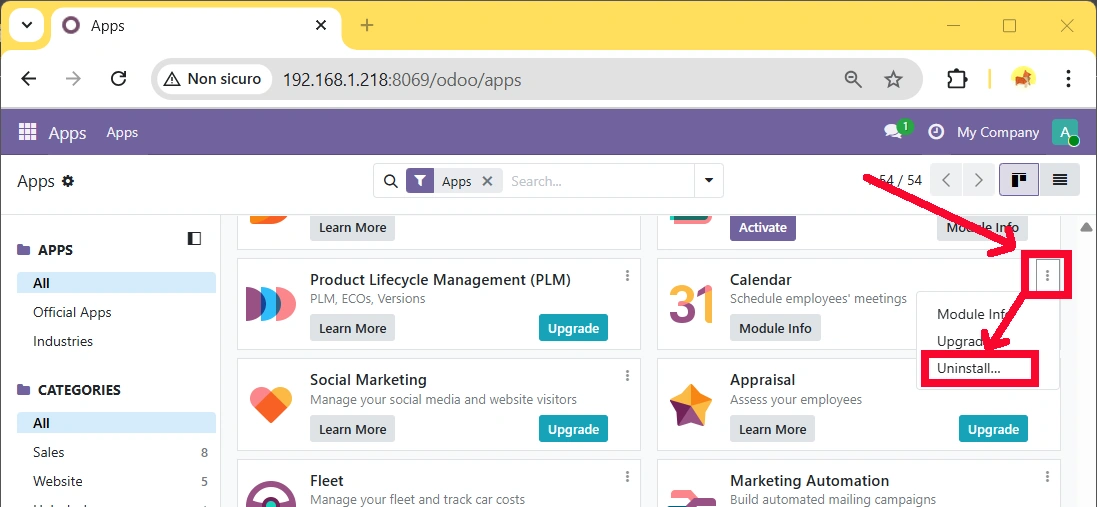
Uninstalling Apps in Odoo is as simple as installing them. Please go to the Apps page and identify the app again. By clicking the “kebab menu” (3 vertical points) you will access some module commands as upgrading and uninstalling it:
Backup and Restore Odoo
A delicate part of maintaining an ERP like Odoo is keeping files and the database safe. The best way to do it is by performing regular backups of Odoo.
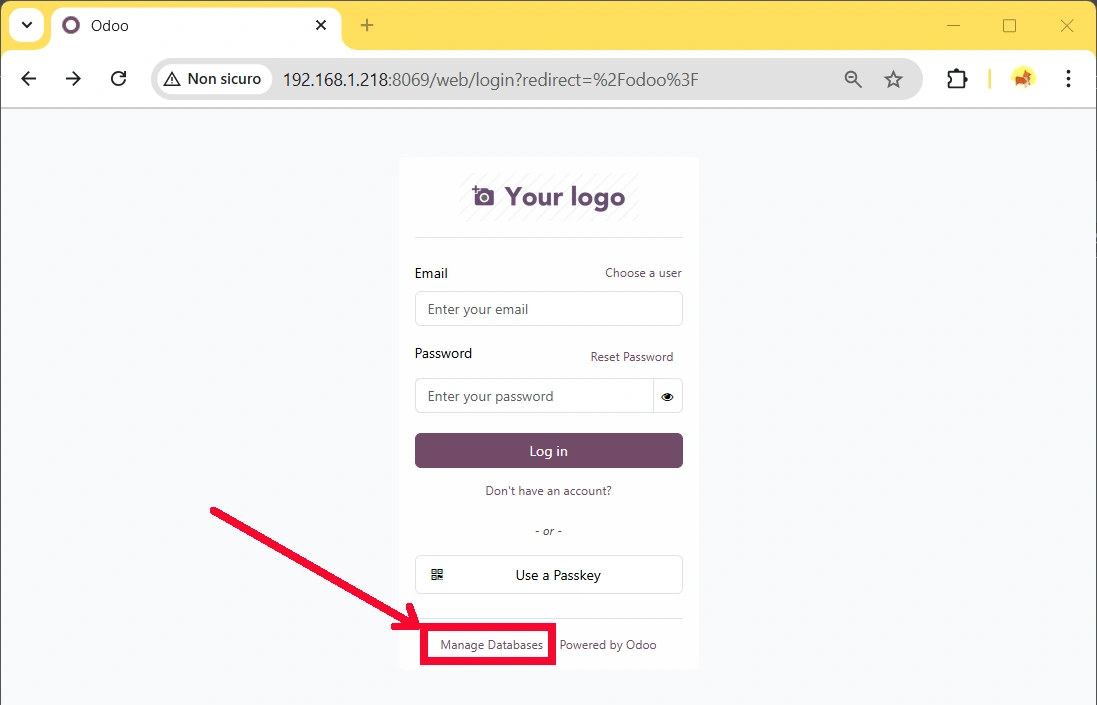
For this task, please log out form Odoo. You will see the login page. At the bottom part of this page, please click the “Manage Database” link highlighted in the following picture:
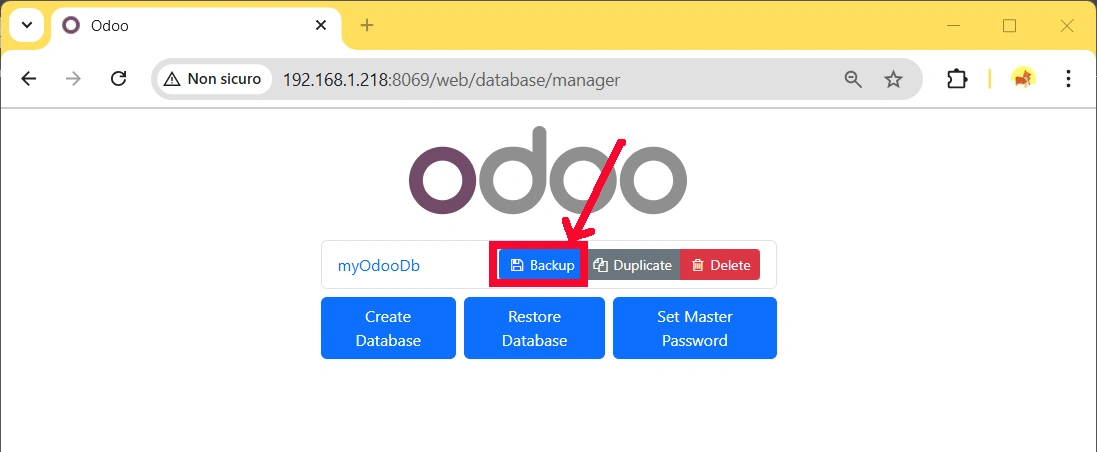
In the resulting page, please click the “Backup” button related to the database you want to backup (if you have more than one):
Now, please enter the Master Password (according to what has been inserted at the database creation stage) and click the “Backup” button:

This will allow you to download a zip file with the complete backup of your database.
If you need to restore Odoo, you can do it from the same database manager page.
If you start from an empty installation, on the first page, please click the “restore database” link highlighted in the following screenshot:

In the following section, please fill the Master Password and the Database name according to the backup you made. Also, please upload the zip file with the backup:

Finally, please click the “Continue” button. At the end of the restore procedure, you will see the database available in the list:

Now, you can go back to the login page, and you will have all your files restored in your Odoo system.
Odoo Documentation
The complete Odoo documentation can be found at the official Odoo docs.
Next Steps
Interested in more projects with your Raspberry PI? Take a look at peppe8o Raspberry PI computers tutorials pages.
Enjoy!

Open source and Raspberry PI lover, writes tutorials for beginners since 2019. He's an ICT expert, with a strong experience in supporting medium to big companies and public administrations to manage their ICT infrastructures. He's supporting the Italian public administration in digital transformation projects.








Just for information:
I tried with a Raspberry Pi 3B+ and nice to see the first screen after the installation (initialization page) but after setting up the database, i got always a timeout (trying to show the login page) 🙁
So no working for me with a version lower than the Raspberry Pi 4!
Hi Adam,
as said in this post, installation process after database setup is heavy and may lead to a timeout page. In this case, just wait a while and simply try querying again “http://YourRaspberryIpAddress:8069” page. This time it should work. Let me know if it goes ok.
Many thanks for your feedback
Thanks,
With my Raspberry pi 4 no problem, no timeout, all working perfectly 🙂
The only step to add for me:
Not to forget to setting locale config before installing PostgreSQL and odoo.
Just follow these commands and PERL will not show any error:
$ export LANGUAGE=en_US.UTF-8
$ export LANG=en_US.UTF-8
$ export LC_ALL=en_US.UTF-8
$ locale-gen en_US.UTF-8
$ dpkg-reconfigure locales
*My first comment was concerning the installation in a Raspberry pi 3, I tried twice and was impossible to run it. But anyways, now with the Raspberry pi 4 everything runs great 🙂
Thank you for your feedback, Adam. Addictional ino for Raspberry PI 3B users: to have it working in setup phase, but generally to have the best from Raspberry PI, it is better to use performing SD cards. Performing SD card have the same effect that SDD disks have vs HDD disks on personal computers: if you boost speed on media hosting your OS, you have an overall improvement in performances. Other optimization tricks can be found at http://peppe8o.com/4-tricks-to-improve-raspberry-pi-performance-and-power-consuption/
Better with 3 way command
1)sudo passwd2)su root
3)wget -O - https://nightly.odoo.com/odoo.key | apt-key add - && echo "deb http://nightly.odoo.com/13.0/nightly/deb/ ./" >> /etc/apt/sources.list.d/odoo.list && apt-get update && apt-get upgrade -y && apt-get install postgresql -y && apt-get install odoo -y
4)localhost:8069 (aka PROFIT!)
This does not work – 🙂 any chance you could revisit?
What is your error message received?
Hello,
During the installation I got this error:
Errors were encountered while processing:
odoo
E: Sub-process /usr/bin/dpkg returned an error code (1)
Can you please help?
This is a generic final error alert. The cause should be available from previous terminal rows while installing, so I need to get the specific error to help you.
Common causes may be a missing package from required ones, a missing permission, a missing folder, etc. Please try again installation process being aware to follow all steps (from update/upgrade ones) and post all error parts from your terminal
Thanks for this post!!!!!
Can I change Odoo 12 by 14 in the installing odoo step?
Sorry for my english, I speack spanish
Maxi
Hi Maxi,
please try using same steps (should not change) and let me know if it works or if you have issues. Thanks, Giuseppe
ok thanks
It works ok with de 14th distribution, great work.
Fantastic! Thank you for your contribute!
Thank you for the tutorial. I was able to get to the point where I can create a database but after doing so and waiting a while, once I reload the website, I get a temporary error 500.
How can this be troubleshoooted?
Thank you
Hi Eliseu,
please use the Admin Password Recover procedure step. The heavy database setup procedure can bring to 500 server error in Raspberry PI (expecially with not performing micro SD cards). However, the admin password recover procedure should do the trick. Please let me know if it works.
Hi Peppe8o,
what I forgott to mention, I am trying this on a Raspberry Pi 2 with 32 bit OS (Maybe this is an issue? I have just ordered a new Raspberry PI 4 and will try it again once it has been delivered).
I have just done everything from scratch again, but same result. After creating the database and waiting a while, error 500. I than tried the admin password recover procedure, but still getting teh 500 error.
This is the content of the log file after restarting the odoo service, maybe you can recognize something where the problem might be?
2020-11-11 14:27:35,441 1000 INFO ? odoo.service.server: Initiating shutdown
2020-11-11 14:27:35,442 1000 INFO ? odoo.service.server: Hit CTRL-C again or send a second signal to force the shutdown.
2020-11-11 14:27:42,554 1070 INFO ? odoo: Odoo version 14.0-20201111
2020-11-11 14:27:42,556 1070 INFO ? odoo: Using configuration file at /etc/odoo/odoo.conf
2020-11-11 14:27:42,557 1070 INFO ? odoo: addons paths: [‘/usr/lib/python3/dist-packages/odoo/addons’, ‘/var/lib/odoo/.local/share/Odoo/addons/14.0’]
2020-11-11 14:27:42,558 1070 INFO ? odoo: database: odoo@default:default
2020-11-11 14:27:44,456 1070 INFO ? odoo.addons.base.models.ir_actions_report: You need Wkhtmltopdf to print a pdf version of the reports.
2020-11-11 14:27:44,940 1070 WARNING ? odoo.addons.base.models.res_currency: The num2words python library is not installed, amount-to-text features won’t be fully available.
2020-11-11 14:27:45,104 1070 INFO ? odoo.service.server: HTTP service (werkzeug) running on raspberrypi:8069
2020-11-11 14:29:43,878 1070 INFO ? odoo.http: HTTP Configuring static files
2020-11-11 14:29:44,222 1070 INFO itsn odoo.modules.loading: loading 1 modules…
2020-11-11 14:29:44,492 1070 INFO itsn odoo.modules.loading: 1 modules loaded in 0.27s, 0 queries (+0 extra)
2020-11-11 14:29:44,503 1070 ERROR itsn odoo.modules.loading: Some modules have inconsistent states, some dependencies may be missing: [‘auth_totp’, ‘base_import’, ‘odoo_referral’, $
2020-11-11 14:29:45,791 1070 INFO itsn odoo.modules.loading: Modules loaded.
2020-11-11 14:29:45,818 1070 INFO itsn odoo.addons.base.models.ir_http: Generating routing map for key None
2020-11-11 14:29:46,200 1070 INFO itsn werkzeug: 127.0.0.1 – – [11/Nov/2020 14:29:46] “GET / HTTP/1.1” 303 – 12 0.087 2.203
2020-11-11 14:29:47,177 1070 WARNING ? odoo.addons.base.models.ir_cron: Skipping database itsn because of modules to install/upgrade/remove.
2020-11-11 14:29:48,952 1070 INFO itsn werkzeug: 127.0.0.1 – – [11/Nov/2020 14:29:48] “GET /web HTTP/1.1” 303 – 1 0.002 0.022
2020-11-11 14:29:49,131 1070 INFO itsn werkzeug: 127.0.0.1 – – [11/Nov/2020 14:29:49] “GET /web/login HTTP/1.1” 500 – 4 0.030 0.063
2020-11-11 14:29:49,204 1070 ERROR itsn werkzeug: Error on request:
Traceback (most recent call last):
File “/usr/lib/python3/dist-packages/werkzeug/serving.py”, line 270, in run_wsgi
execute(self.server.app)
File “/usr/lib/python3/dist-packages/werkzeug/serving.py”, line 258, in execute
application_iter = app(environ, start_response)
File “/usr/lib/python3/dist-packages/odoo/service/server.py”, line 440, in app
return self.app(e, s)
File “/usr/lib/python3/dist-packages/odoo/service/wsgi_server.py”, line 124, in application
return application_unproxied(environ, start_response)
File “/usr/lib/python3/dist-packages/odoo/service/wsgi_server.py”, line 99, in application_unproxied
result = odoo.http.root(environ, start_response)
File “/usr/lib/python3/dist-packages/odoo/http.py”, line 1294, in __call__
return self.dispatch(environ, start_response)
File “/usr/lib/python3/dist-packages/odoo/http.py”, line 1262, in __call__
return self.app(environ, start_wrapped)
File “/usr/lib/python3/dist-packages/werkzeug/wsgi.py”, line 766, in __call__
return self.app(environ, start_response)
File “/usr/lib/python3/dist-packages/odoo/http.py”, line 1464, in dispatch
result = ir_http._dispatch()
File “/usr/lib/python3/dist-packages/odoo/addons/base/models/ir_http.py”, line 241, in _dispatch
return cls._handle_exception(e)
File “/usr/lib/python3/dist-packages/odoo/addons/base/models/ir_http.py”, line 209, in _handle_exception
return request._handle_exception(exception)
File “/usr/lib/python3/dist-packages/odoo/http.py”, line 743, in _handle_exception
return super(HttpRequest, self)._handle_exception(exception)
File “/usr/lib/python3/dist-packages/odoo/http.py”, line 314, in _handle_exception
raise exception.with_traceback(None) from new_cause
ValueError: External ID not found in the system: web.login – – –
2020-11-11 14:29:50,096 1070 INFO itsn werkzeug: 127.0.0.1 – – [11/Nov/2020 14:29:50] “GET /favicon.ico HTTP/1.1” 404 – 2 0.018 0.031
Thank you
Hi Eliseu,
please try with RPI4. Installation process is already heavy for Raspberry PI 3 model B+, so older models can have too low performances to complete initialization process, resulting in inconsistent modules if timeouts occur during setup.
Let me know if other issues occur with the new PI.
Giuseppe
I am getting an error for the step: Installing Odoo:
Warning: apt-key output should not be parsed (stdout is not a terminal)
Hi Abot. This is only a warning, not an error. So you should be able to continue by simply ignoring it.
Let me know if works.
This is from my putty session. I’m a new user so I’m sure its something easy! 🙂
root@raspberrypi:/home/pi# wget -O - https://nightly.odoo.com/odoo.key | apt-key add -echo "deb http://nightly.odoo.com/12.0/nightly/deb/ ./" >> /etc/apt/sources.list.d/odoo.list--2021-02-06 14:32:34-- https://nightly.odoo.com/odoo.key
Resolving nightly.odoo.com (nightly.odoo.com)... 178.33.123.40
Connecting to nightly.odoo.com (nightly.odoo.com)|178.33.123.40|:443... connected.
Warning: apt-key output should not be parsed (stdout is not a terminal)
HTTP request sent, awaiting response... 200 OK
Length: 3112 (3.0K) [application/octet-stream]
Saving to: ‘STDOUT’
- 0%[ ] 0 --.-KB/s in 0s
Cannot write to ‘-’ (Broken pipe).
root@raspberrypi:/home/pi# apt update && apt install odoo
E: Type 'gpg' is not known on line 1 in source list /etc/apt/sources.list.d/odoo.list
E: The list of sources could not be read.
root@raspberrypi:/home/pi#
This is from my putty session. I’m a new user so I’m sure its something easy! 🙂
root@raspberrypi:/home/pi# wget -O – https://nightly.odoo.com/odoo.key | apt-key add -echo “deb http://nightly.odoo.com/12.0/nightly/deb/ ./” >> /etc/apt/sources.list.d/odoo.list
–2021-02-06 14:32:34– https://nightly.odoo.com/odoo.key
Resolving nightly.odoo.com (nightly.odoo.com)… 178.33.123.40
Connecting to nightly.odoo.com (nightly.odoo.com)|178.33.123.40|:443… connected.
Warning: apt-key output should not be parsed (stdout is not a terminal)
HTTP request sent, awaiting response… 200 OK
Length: 3112 (3.0K) [application/octet-stream]
Saving to: ‘STDOUT’
– 0%[ ] 0 –.-KB/s in 0s
Cannot write to ‘-’ (Broken pipe).
root@raspberrypi:/home/pi# apt update && apt install odoo
E: Type ‘gpg’ is not known on line 1 in source list /etc/apt/sources.list.d/odoo.list
E: The list of sources could not be read.
root@raspberrypi:/home/pi#
Ok. This should be a really rare problem. I bet you are copying commands from this page to a program like Microsoft Word (or somethig similar), then to your PI terminal. I say this because in wget command the second “-” doesn’t appear to be a minus, but an insane MS Word char…
Please, try to copy command to notepad and check that the “-” char before “https://nightly…..” is a minus. Or use following:
wget -O - https://nightly.odoo.com/odoo.key | apt-key add -Just to be sure I manually typed it in as I was using notepad to make sure the line break in the commands given wouldn’t break anything.
root@raspberrypi:/home/pi# wget -o - https://nightly.odoo.com/odoo.key | apt-key add -echo "deb http://nightly.odoo.com/12/0/nightly/deb/ ,/" >> /etc/apt/sources.list.d/odoo.listWarning: apt-key output should not be parsed (stdout is not a terminal)
root@raspberrypi:/home/pi# apt update && apt install odoo
E: Type 'gpg' is not known on line 1 in source list /etc/apt/sources.list.d/odoo.list
E: The list of sources could not be read.
This time your error comes from the lower case in “-o” option in wget, instead of upper “-O”. Linux command options are case sensitive… Please copy from here and paste directily in your terminal following commands (in 2 different rows):
wget -O - https://nightly.odoo.com/odoo.key | apt-key add -then, after this command execution:
echo "deb http://nightly.odoo.com/12.0/nightly/deb/ ./" >> /etc/apt/sources.list.d/odoo.listAh! Thank you! I learned something!!! 🙂
You are welcome! 😉
Where does odoo save its data!
Question: If you have set up a Raid 1 system, which files and paths do you have to copy? And which conf must be edited so that odoo can find the data on Raid 1.
Hi Thomas,
you are right, it is really hard to find in Odoo doc where data are stored. I watched at https://registry.hub.docker.com/_/odoo/?tab=description, where docs on installing official odoo image with docker are published. Usually, with Docker you map local volumes where data are stored to avoid data loss on container remotion. According to this document, it seems that Odoo data are in following folders:
Hope this can help you
Hi,
Thanks for the Pi version that is much simpler than the other Odoo installs I’ve seen. That said, I get the following error, even though Python3 is installed:
The following packages have unmet dependencies:
odoo : Depends: python3-gevent but it is not installable
Depends: python3-libsass but it is not installable
Depends: python3-passlib but it is not installable
Depends: python3-suds but it is not installable
Depends: python3-usb but it is not installable
Recommends: python3-pyldap but it is not installable
Recommends: python3-qrcode but it is not installable
Recommends: python3-vobject but it is not installable
E: Unable to correct problems, you have held broken packages
Please help and thanks, Jim
Hi Jim,
when do you get this error? At what point of installation process?
at the Install stage, “apt update && apt install odoo”. Result from terminal:
root@raspberrypi:/home/pi# apt update && apt install odooIgn http://nightly.odoo.com ./ InRelease
Get:1 http://nightly.odoo.com ./ Release.gpg [833 B]
Hit http://mirrordirector.raspbian.org jessie InRelease
Get:2 http://nightly.odoo.com ./ Release [1,188 B]
Get:3 http://nightly.odoo.com ./ Packages [1,893 B]
Hit http://mirrordirector.raspbian.org jessie/main armhf Packages
Hit http://mirrordirector.raspbian.org jessie/contrib armhf Packages
Hit http://mirrordirector.raspbian.org jessie/non-free armhf Packages
Hit http://mirrordirector.raspbian.org jessie/rpi armhf Packages
Ign http://nightly.odoo.com ./ Translation-en_US
Ign http://nightly.odoo.com ./ Translation-en
Ign http://mirrordirector.raspbian.org jessie/contrib Translation-en_US
Ign http://mirrordirector.raspbian.org jessie/contrib Translation-en
Ign http://mirrordirector.raspbian.org jessie/main Translation-en_US
Ign http://mirrordirector.raspbian.org jessie/main Translation-en
Ign http://mirrordirector.raspbian.org jessie/non-free Translation-en_US
Ign http://mirrordirector.raspbian.org jessie/non-free Translation-en
Ign http://mirrordirector.raspbian.org jessie/rpi Translation-en_US
Ign http://mirrordirector.raspbian.org jessie/rpi Translation-en
Hit http://archive.raspberrypi.org jessie InRelease
Hit http://archive.raspberrypi.org jessie/main armhf Packages
Hit http://archive.raspberrypi.org jessie/ui armhf Packages
Ign http://archive.raspberrypi.org jessie/main Translation-en_US
Ign http://archive.raspberrypi.org jessie/main Translation-en
Ign http://archive.raspberrypi.org jessie/ui Translation-en_US
Ign http://archive.raspberrypi.org jessie/ui Translation-en
Fetched 3,914 B in 37s (104 B/s)
Reading package lists… Done
Building dependency tree
Reading state information… Done
All packages are up to date.
Reading package lists… Done
Building dependency tree
Reading state information… Done
Some packages could not be installed. This may mean that you have
requested an impossible situation or if you are using the unstable
distribution that some required packages have not yet been created
or been moved out of Incoming.
The following information may help to resolve the situation:
The following packages have unmet dependencies:
odoo : Depends: python3-gevent but it is not installable
Depends: python3-libsass but it is not installable
Depends: python3-passlib but it is not installable
Depends: python3-suds but it is not installable
Depends: python3-usb but it is not installable
Recommends: python3-pyldap but it is not installable
Recommends: python3-qrcode but it is not installable
Recommends: python3-vobject but it is not installable
E: Unable to correct problems, you have held broken packages.
Hi Jim,
I’m sorry, but I wasn’t able to reproduce your error, as this evening I started from a fresh Raspberry PI OS Lite installation and followed line by line my tutorial, resulting in a complete and working installation without your errors. I can only suggest to start again from a fresh OS setup.
my error message :
root@odoo:/home/pi# wget -O - https://nightly.odoo.com/odoo.key | apt-key add - echo "deb http://nightly.odoo.com/12.0/nightly/deb/ ./" >> /etc/apt/sources.list.d/odoo.list--2021-05-08 09:09:15-- https://nightly.odoo.com/odoo.key
Resolving nightly.odoo.com (nightly.odoo.com)... 178.33.123.40
Connecting to nightly.odoo.com (nightly.odoo.com)|178.33.123.40|:443... Warning: apt-key output should not be parsed (stdout is not a terminal)
connected.
HTTP request sent, awaiting response... 200 OK
Length: 3112 (3.0K) [application/octet-stream]
Saving to: ‘STDOUT’
- 100%[===========================================>] 3.04K --.-KB/s in 0s
2021-05-08 09:09:16 (6.73 MB/s) - written to stdout [3112/3112]
gpg: can't open 'echo': No such file or directory
gpg: can't open 'deb http://nightly.odoo.com/12.0/nightly/deb/ ./': No such file or directory
how to do next step ?
Hi. I think this is a common problem when you copy from web, paste to MS Word and then to terminal. MS Word tend to change “-” (minus) with an horizontal bar. To avoid this, please paste the command to a plain text program (like notepad), check that all are “minus” and then use in terminal
Hi peppe8o,
Could you build odoo img for raspberry pi (.zip. or .img etc..).
Let’s everyone to download. everyone can happy to use odoo after we just restore img.
PS. odoo 12, 13 ,14 different odoo version or just build last version only img (odoo 14).
thx.
Any OS image should be verified costantly (also with different RPI models) and updated on each Odoo update. Installing Odoo from its repository I think is the correct way to stay aligned with current software bug fixes and repositories progress.
You can use this procedure also with newer Odoo versions as a previous user stated that this procedure works also with Odoo 14 (you only need to change repository link when adding to apt sources list).
Database creation error: decoding with ‘euc_kr’ codec failed
How should I deal with the error shown above?
Hi. This is a strange error, maybe due to different languages encoding. Please try with a fresh Raspberry PI OS Lite installation (in English). You can also use the latest Odoo packages (maybe something corrected in their development flow) with the following line instead of similar one in my tutorial:
sudo sh -c 'echo "deb http://nightly.odoo.com/14.0/nightly/deb/ ./" >> /etc/apt/sources.list.d/odoo.list'Once Odoo is installed and working in English, you will probably change the application language with more luck.
Please let me know if this works.
Thank you so much!
This post helped me so much!
Was able to install odoo 14 on my rasp pi 4b.
Hi! I was be able to install odoo 14 CE with this method, but can I use it as iotbox at the same time??
Seems like it isn’t recognizing as iotbox anymore.
How should I connect my receipt printer??
Do I need another Pi to set that up?
Hi Yuri. First of all, thank you for your feedback.
Connecting a printer to Raspberry PI depends on printer brand and model. You have to find Linux drivers for your printer (if not already available in your OS installation). For example, HP printers can be managed with the helpful hplip package.
The best way is to look on the internet for your users having the same printer.
You can also think to setup a network printer server by installing CUPS on Raspberry PI.
For anyone who wants to install odoo v15 on raspberry pi
I got it to work using
apt updateapt upgrade
apt install postgresql -y
wget -O - https://nightly.odoo.com/odoo.key apt-key add -
echo "deb http://nightly.odoo.com/15.0/nightly/deb/ ./" >> /etc/apt/sources.list.d/odoo.list
apt-key adv --keyserver keyserver.ubuntu.com --recv-keys DEF2A2198183CBB5
apt update && apt install odoo
I hope it can be useful to someone else
Thanks for this easy to follow step by step installment.
It worked like a charm!
However, there’s one small issue when using CE14.
wkhtmltopdf doesn’t seem to be working correctly so headers and footers are missing on pdf reports.
See https://www.odoo.com/nl_NL/forum/help-1/wkhtmltopdf-how-do-i-install-0-12-5-1-the-one-odoo-needs-on-ubuntu-20-04-177412
Updating wkhtmltopdf doesn’t seem to obvious with a Pi since it’s using ARM architecture.
Any tips on how to proceed?
Hi Guy Thankbyou for your feedback. Regarding wkhtmltopdf it’s hard to say for me… you should ask support to their support (https://wkhtmltopdf.org/support.html) if they can help you.
Sorry, Giuseppe
I installed this three times on an RPi 4B 4GB. Went perfectly each time. First was a test run, second was to conduct an online tutorial and the third time was for real-world usage.
What a great product and an equally well written “how-to.”
Thank you
Thank you for your feedback, DAvid. I’m really happy when my readers get help from my tutorials!
Hi,
I Get the following error message. I am new to debian so i probably did something stupid.
bash: /etc/apt/sources.list.d/odoo.list: Permission denied
Can you tell me why the permission is denied? Thanks!
Hi, probably you’re missing a “sudo” somewhere. Where do you get this error?
Hello!
Its a good guide but im getting stuck on the install part. It’s missing a package called python3-pypdf2. I tried apt search pypdf2 and nothing came up, but apt search python3-pypdf returned something.
I’ve got a Pi 5 with lite Raspi OS, I’m a bit of a noob so this would probably be an easy one to fix.
Solving dependencies… Error!
Some packages could not be installed. This may mean that you have
requested an impossible situation or if you are using the unstable
distribution that some required packages have not yet been created
or been moved out of Incoming.
The following information may help to resolve the situation:
The following packages have unmet dependencies:
odoo : Depends: python3-pypdf2 but it is not installable
Recommends: python3-ldap but it is not going to be installed
E: Unable to correct problems, you have held broken packages.
E: The following information from –solver 3.0 may provide additional context:
Unable to satisfy dependencies. Reached two conflicting decisions:
1. odoo:arm64=17.0.20251104 is selected for install
2. odoo:arm64 Depends python3-pypdf2
but none of the choices are installable:
[no choices]
Many thanks!
Thank you for your comment, Chuck. As shared by email, I will update this tutorial by this week end, as something appears to be changed in the Odoo installation procedure. In my next update I will use Docker instead of the apk installation as this helps in avoiding dependency problems.