

Last Updated on 3rd May 2026 by peppe8o

In this tutorial, I will show you how to install and configure an AI Agent on a Raspberry PI computer board by using LangChain and Ollama, to get an agent running only in your local storage (without any cloud service).
I will include the code to perform a few basic tasks, but this tutorial will show you how to create your own, too.
About AI Agents
I already dealt with LangChain and Ollama in my previous posts, where you can get the instructions to create AI applications, such as, for example, an AI chatbot exposed by Streamlit.
The difference between AI apps and AI agents is that the latter can also perform tasks on the local board, based on “tools” that you define in your code. So, for example, you can get an AI agent to check the Raspberry PI’s CPU temperature or if it runs a specified service.
What We Need
As usual, I suggest adding from now to your favourite e-commerce shopping cart all the needed hardware, so that at the end you will be able to evaluate overall costs and decide if to continue with the project or remove them from the shopping cart. So, hardware will be only:
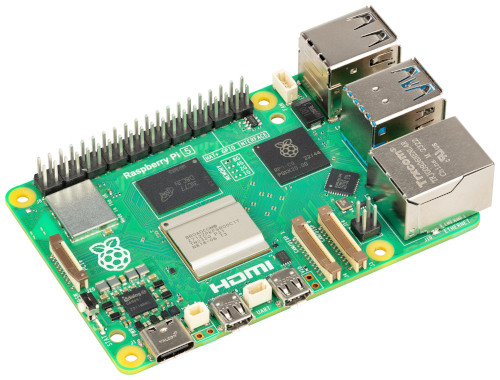
- Raspberry PI Computer Board (including proper power supply or using a smartphone micro USB charger with at least 3A)
- high-speed micro SD card (at least 16 GB, at least class 10)
Step-by-Step Procedure
Prepare the Operating System
The first step is to install the Raspberry PI OS Lite (64-bit version) to get a fast and lightweight operating system (headless). If you need a desktop environment, you can also use the Raspberry PI OS Desktop (also here, 64-bit version), in which case you will work from its terminal app. Please find the differences between the 2 OS versions in my Raspberry PI OS Lite vs Desktop article.
Please make sure that your Operating System is up to date. From your terminal, use the following command:
sudo apt update -y && sudo apt full-upgrade -yWe also need pip. You can check if it is available in your Raspberry PI (and install it, if missing) with the following terminal command:
sudo apt install python3-pip -yInstall Ollama and Pull the Model
Ollama will locally host and run the AI model we’ll choose, so we need Ollama installed in our Raspberry PI. For this task, please refer to my Ollama in Raspberry PI tutorial.
We also need to pull (download) an AI model. I will use the qwen2.5:0.5b model. This is lightweight and should run fastly in many Raspberry PI computer models.
ollama pull qwen2.5:0.5bAnyway, you can find the complete models list at https://ollama.com/library
Install LangChain on Raspberry PI
Now, we can install LangChain. Besides this package, we also need the ollama integration.
We’ll install them in Python, and for security reasons, we need to create a Virtual Environment according to the Python security recommendations (more info about Python virtual environments is available from my Beginner’s Guide to Using Python Virtual Environment tutorial). We’ll name it p8o_agent. Moreover, the –system-site-packages option allows us to get the system packages inside the environment, so that we’ll be able to use the gpiozero library in our AI agent program:
python3 -m venv p8o_agent --system-site-packagesNow, we must activate the virtual environment. Please remember to activate it every time you run the app:
source p8o_agent/bin/activateYou can see the virtual environment activated as you will get its name at the beginning of your prompt:
(p8o_agent) pi@raspberrypi:~ $Finally, we can install all the required packages with the following terminal command:
pip install langchain langchain-ollamaNow, we’ll need 2 different Python files:
- the
p8o_rpi_tools.pywill include all the tools we need to get our AI agent on a Raspberry PI to perform some defined actions - the
rpi-agent.pywill include the main program, which will run the AI engine by using LangChain and Ollama
The AI Agent Tools File
You can get the tools file in your Raspberry PI storage with the following terminal command:
wget https://peppe8o.com/download/python/langchain/p8o_rpi_tools.pyThis file will be explained in this chapter.
At the beginning, we import the required packages. The first 4 packages are used inside the tools to perform the required actions:
import time
import shutil
import subprocess
import gpiozero
The following 2 packages are required to setup the LangChain tools:
from langchain.tools import tool
from langchain_core.tools import BaseTool
The following run_cmd() custom function allows you to run terminal commands in your Raspberry PI and get the related results inside the Python script, by using the subprocess module:
def run_cmd(cmd: list[str], timeout: int = 5) -> dict:
    try:
        result = subprocess.run(
            cmd,
            capture_output=True,
            text=True,
            timeout=timeout
        )
        return {
            "ok": result.returncode == 0,
            "returncode": result.returncode,
            "stdout": result.stdout.strip(),
            "stderr": result.stderr.strip(),
        }
    except Exception as e:
        return {
            "ok": False,
            "returncode": -1,
            "stdout": "",
            "stderr": str(e),
        }
Here comes the first tool. Each tool begins with the @tool decorator: this converts a Python function into a LangChain Tool Object that the agent can use in its tasks. Each function starts with an explanation to the agent about what the tool makes and when to use it. In this definition, you can also give the agent some examples of the cases where to use this tool:
@tool
def get_cpu_temp() -> dict:
    """Read the Raspberry Pi CPU temperature in Celsius.
     Use this tool for any quetions like, for example:
     - what is your temperature
     - What is the CPU temperature right now?
     - Check the Raspberry Pi CPU temperature.
     - How hot is my Raspberry Pi CPU?
     - Read the current SoC temperature.
     - What temperature is the processor running at?
     - Check the SoC heat level.
     - Read the thermal sensor for the CPU.
     """
The function content itself is quite simple: it just takes the CPU temperature with the gpiozero library and returns it to the agent, together with the datetime when the values have been measured. In case of any error, the function notifies the problem to the agent via the returned result:
    try:
       t = gpiozero.CPUTemperature().temperature
       return {
            "temperature": t,
            "measured_at": time.strftime("%Y-%m-%d %H:%M:%S"),
        }
    except:
       return {
            "error": "Temperature not available",
            "measured_at": time.strftime("%Y-%m-%d %H:%M:%S"),
        }
The second tool also adopts this schema. In this case, it expects a parameter (service_name) from the agent. You don’t need to care about how this input parameter will come to the function: the AI agent on Raspberry PI will do the job by itself:
@tool
def get_service_status(service_name: str) -> dict:
    """
    Check a systemd service status.
    If the service is not installed, return that message.
    Otherwise, return its status.
    """
In this function, we use the systemctl cat xxx bash command to check if the service exists.
If it doesn’t exist, the function will return a message to the AI agent, explaining that the service hasn’t been found:
    systemctl = shutil.which("systemctl")

    service_exists = run_cmd([systemctl, "cat", service_name, "--no-pager"], timeout=4)
    if not service_exists["ok"]:
        return {
            "ok": True,
            "service": service_name,
            "installed": False,
            "message": f"The service {service_name} is not installed in systemd."
        }
If the service exists, on the other hand, the function will extract the status for the service and return it to the agent:
    status = run_cmd([systemctl, "status", service_name, "--no-pager", "--lines=10"], timeout=4)
    return {
        "ok": True,
        "service": service_name,
        "installed": True,
        "status": status,
    }
The final part of this tools file automatically collects all the tools to pass them to the main program, as we’ll see in the following file. This part must be at the end of the file, so please add your tools before these lines:
TOOLS = [
    obj for obj in globals().values()
    if isinstance(obj, BaseTool)
]
The AI Agent file for Raspberry PI
This is the main file to run to get the AI agent executed on our Raspberry PI computer board. Please get it from my download area with the following terminal command:
wget https://peppe8o.com/download/python/langchain/rpi-agent.pyHere’s the line-by-line explanation.
As usual, at the beginning, we import the required packages:
from langchain.agents import create_agent
from langchain_ollama import ChatOllama
from langchain_core.messages import AIMessageChunk
We also import the tools from the p8o_rpi_tools.py file. Please note that this file must be saved in the same path as the main script or in one of the default Python paths:
from p8o_rpi_tools import TOOLSAs explained in my previous posts about AI applications, the initial prompt to the AI object is one of the most important parts. It gives the AI model all the instructions about what it is intended to do:
SYSTEM_PROMPT = """
You are a Raspberry Pi assistant.

Rules:
- If the user asks about temperature or services, you MUST call the relevant tool.
- Do not answer from general knowledge.
- Do not guess based on Raspberry Pi model number.
- If a tool is available, always use it.
- Be super concise, practical, and factual.
- Don't give additional suggestions, unless explicitly asked
- Never invent values.
"""
We also set the model, as already explained with my previous LangChain projects. In this case, I use the qwen2.5:0.5b model, as it is lightweight and should run fast in the latest Raspberry PI computer models. We’ll call it from the local Ollama engine:
model = ChatOllama(
    model="qwen2.5:0.5b",
    temperature=0,
)
Now, a brief banner will be printed in the terminal when the user runs this script. This allows you to check all the available tools, as well as to check that the tools have been correctly imported:
print("Loaded tools:")
for t in TOOLS:
    print("-", t.name)
Now, the script creates the LangChain agent object by using the defined model, adding the tools and giving it the system prompt with its instructions:
agent = create_agent(
    model=model,
    tools=TOOLS,
    system_prompt=SYSTEM_PROMPT,
)
Before asking the user for the first input, we advise the user that he can just prompt a “quit” to exit from the program:
print("Raspberry Pi Agent")
print("Use 'quit' to exit")
print()
Now, the main loop starts. It waits for any prompt from the user. Once get it, we first check if the user typed a “quit” command and, only in this case, we “break” (quit) from the program. Also, an “exit” keyword is accepted to exit:
while True:
    user_input = input("You: ").strip()

    if user_input.lower() in {"quit", "exit"}:
        break
If the user doesn’t prompt anything, the while loop just restarts, waiting again for a new prompt:
    if not user_input:
        continue
The following lines just prepare the terminal area for the AI agent answer:
    print("Agent: ", end="", flush=True)
    full_response = ""
The following block sends the user input to the agent and extracts from it any part coming in a “streaming” way (instead of waiting for the whole AI message to be completed before printing it):
    for token, metadata in agent.stream(
        {"messages": user_input},
        stream_mode="messages",
    ):
For each token (text or value) returned from the agent, the following part will print it to the user’s terminal:
        if isinstance(token, AIMessageChunk):
            piece = token.text
            if piece:
                print(piece, end="", flush=True)
                full_response += piece
The final print statement just adds an empty line after any answer from the AI agent and before waiting for the following input from the user:
print("\n")Run the AI Agent on Raspberry PI
Now, you can run the AI agent with the following terminal command, if the related virtual environment is active:
python rpi-agent.pyHere’s an example for 2 questions and answers from it:
(p8o_agent) pi@raspberrypi:~ $ python rpi-agent.py
Loaded tools:
- get_cpu_temp
- get_service_status
Raspberry Pi Agent
Use 'quit' to exit

You: what is the current cpu temperature?
Agent: The current CPU temperature is 61.15°C measured at 2026-05-02 18:17:17.

You: how's going the ollama service?
Agent: The Ollama service is installed and running successfully. It's currently active with the following status:

- **OK**: The service is enabled.
- **RETURN CODE**: 0 (success).
- **STDOUT**: `● ollama.service - Ollama Service`
- **STDERR**: No errors were reported.
Final Notes
I tested this AI agent in my Raspberry PI 5 model B with 8GB of RAM. It works with a decent speed, even if the first input requires a bit more time. To get acceptable performances, please use lightweight models for the agent and focus more on writing complete tools.
As AI models can decide to use or not the tools you defined, I found it important to write query examples for each tool and keep the prompts as close as possible to these queries.
Different from my previous projects, I removed the message memory from the agent. I did it because the message history gave me problems with the agent preferring to use those already saved in the history instead of using the tools to get new values (for example, on repeated CPU temperature prompts). The current setting works, but you must prompt a complete query (maybe also a simple “CPU temperature”) instead of something like “give it to me again” or “recheck it”.
Finally, you can also integrate this AI agent on Raspberry PI with a web interface in a chatbot-style by using my Create a Self-Hosted, Generative AI Chatbot with Raspberry PI, Streamlit, LangChain, and Ollama tutorial.
Next Steps
If you are interested in more Raspberry PI projects (both with Lite and Desktop OS), take a look at my Raspberry PI Tutorials.
Enjoy!

Open source and Raspberry PI lover, writes tutorials for beginners since 2019. He's an ICT expert, with a strong experience in supporting medium to big companies and public administrations to manage their ICT infrastructures. He's supporting the Italian public administration in digital transformation projects.







