
Last Updated on 20th December 2025 by peppe8o
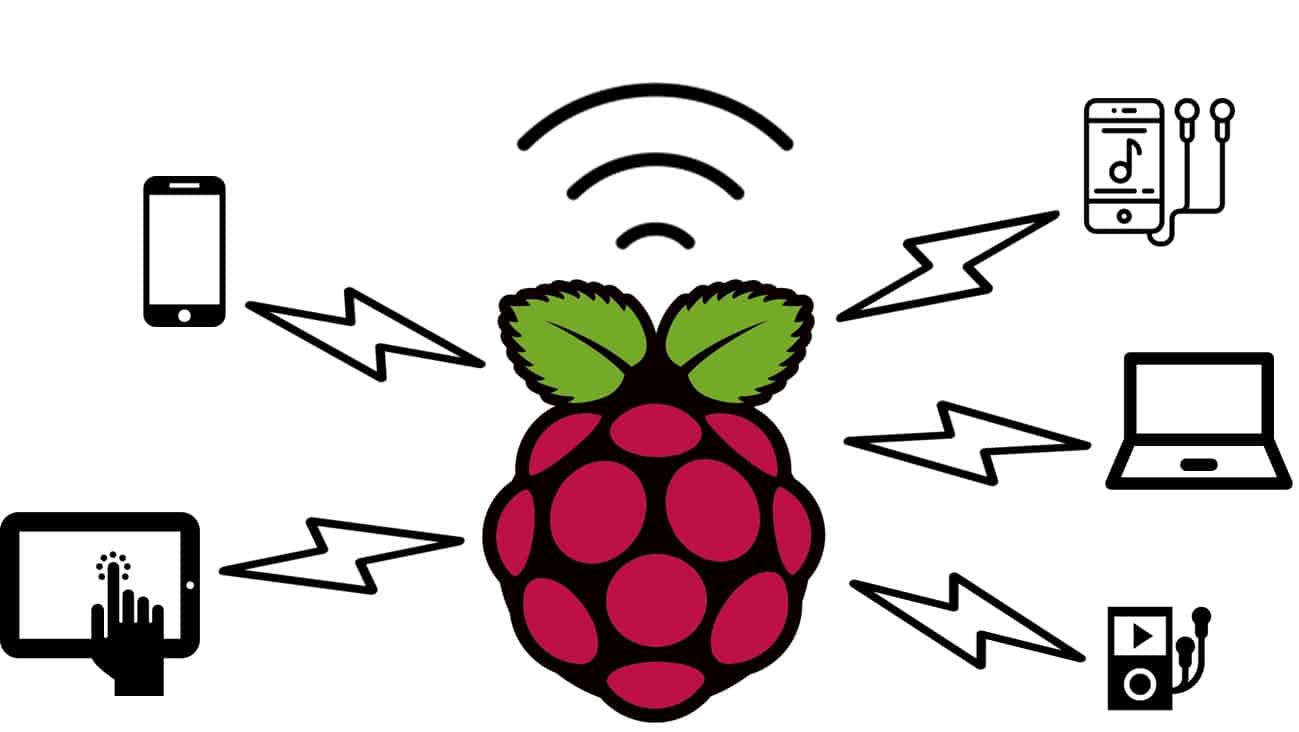
In this tutorial, I’ll show you how to configure a Raspberry Pi WiFi Hotspot to share your connectivity, creating a WiFi Hotspot Network. I’ll show you a practical example, also working to share the USB connectivity of your smartphone.
About the Raspberry PI Hotspot Scenarios
Several needs may bring you to look for a way to convert your Raspberry PI computer board into a hotspot.
This is useful, for example, to create a WiFi home network when you have an old router without WiFi support. Or you may need it when travelling to create a private network, maybe connected to the internet via USB connection from your smartphone.
Using a Raspberry PI computer board to share connectivity across a WiFi network also increases your WLAN capabilities, as you can run on the same single-board computer a traffic-blocking system (like Pi-Hole), Proxy capabilities (like Squid, Privoxy or TOR) or other local services (like a git web portal or WordPress host).
Of course, you can use this tutorial with all the Raspberry PI computer boards.
What We Need
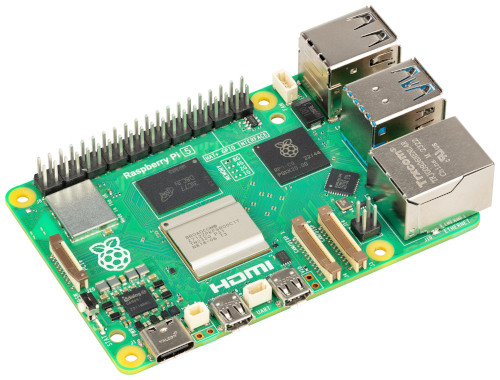
As usual, I suggest adding from now to your favourite e-commerce shopping cart all the needed hardware, so that at the end you will be able to evaluate overall costs and decide if to continue with the project or remove them from the shopping cart. So, hardware will be only:
- Raspberry PI Computer Board (including proper power supply or using a smartphone micro USB charger with at least 3A)
- high-speed micro SD card (at least 16 GB, at least class 10)
Step-by-Step Procedure
For the first part of this tutorial, we need an internet connection to update the Raspberry PI OS once installed. Even if you can get it from the Ethernet port of your Raspberry PI, I suggest you configure a “dummy” WiFi connection from the Raspberry PI Imager, as this step sets the radio parameters of the WiFi adapter.
Prepare the Operating System
The first step is to install the Raspberry PI OS Lite to get a fast and lightweight operating system (headless). If you need a desktop environment, you can also use the Raspberry PI OS Desktop, in which case you will work from its terminal app. Please find the differences between the 2 OS versions in my Raspberry PI OS Lite vs Desktop article. For low RAM Raspberry PI computer models, the Lite OS is strongly suggested.
Please make sure that your OS is up to date. From your terminal, use the following command:
sudo apt update -y && sudo apt full-upgrade -ySetup Raspberry PI WiFi Hotspot
The whole task will be managed by the nmcli (NetworkManager Command-Line Interface) tool.
After changing the red parts with your favourite SSID and password for the WiFi network you’ll create, you can perform the whole setup with the following terminal command:
sudo nmcli connection add \
    type wifi \
    ifname wlan0 \
    con-name Hotspot \
    autoconnect yes \
    ssid "RpiWiFi" \
    802-11-wireless.mode ap \
    802-11-wireless.band bg \
    ipv4.method shared \
    wifi-sec.key-mgmt wpa-psk \
    wifi-sec.psk "wifipassword"
Here’s a breakdown explaining what these options mean.
sudo nmcli connection addBesides the “sudo nmcli” part, which just calls the nmcli tool as root, the “connection add” creates a new network connection profile managed by NetworkManagertype wifi: specifies that it is a Wi-Fi connectionifname wlan0: identifies the wlan0 as the interface where to bind for incoming (clients) connections. Usually, Wlan0 is the WiFi connection of Raspberry PIcon-name Hotspot: it gives a name to the connection profile. It will be named as “Hotspot”, but you can name it as you preferautoconnect yes: will activate this connection even after reboots, when the interface is availablessid "RpiWiFi": specifies the SSID for our hotspot network802-11-wireless.mode ap: sets the network to work as an Access Point, so accepting connections from clients802-11-wireless.band bg: sets the Wi-Fi band to use 2.4GHz (“bg”). You can also use the 5GHz band (changing “bg” with “a”), but the 2.4GHz band assures better compatibility with clientsipv4.method shared: it enables the Raspberry PI to share its internet connection with this new network profile. With this option, NetworkManager will setup NAT, IP forwarding, and a DHCP serverwifi-sec.key-mgmt wpa-psk: improves the WiFi network security by enabling WPA-PSK (WPA/WPA2 pre-shared key) authenticationwifi-sec.psk "wifipassword": sets the Wi-Fi password
After you run this command, you can check that it is correctly available from the connection profiles in your Raspberry PI with the nmcli connection command:
pi@raspberrypi-hotspot:~ $ nmcli connection
NAME                     UUID                                  TYPE      DEVICE
netplan-wlan0-********   ********-****-****-****-************  wifi      wlan0
lo                       e4922ebd-de32-45d4-9ebd-40469e357e99  loopback  lo
Hotspot                  47e2f13f-bdfa-4339-b95d-e082d20cb840  wifi      --
Wired connection 1       bfdcfcbb-c615-3114-ae5b-f468bb89b992  ethernet  --
In my case, as you can see from my log, it is configured. But the wlan0 interface is currently used for the home wifi. In this case, you can activate the Raspberry PI Hotspot with the following terminal command:
sudo nmcli connection up HotspotThe RpiWiFi will appear in your WiFi list on your clients in a few minutes and you should be able to use it for your internet connection.
(Only for Smartphone USB Connection) Connect Your Smartphone and enable USB Tethering
If you want to use your smartphone connection and share it in your Raspberry PI Wi-Fi Hotspot, you can now connect your smartphone to the Raspberry PI USB port. You also have to enable the USB tethering from your smartphone, according to its OS user manual. Usually:
- Android Smartphones: this function is usually available in Settings -> Connections -> Mobile Hotspot and Tethering
- Apple Smartphones: this function is usually available in Settings -> Cellular (some iOS versions skip this step) -> Personal Hotspot
Next Steps
Interested in more projects with your Raspberry PI? Take a look at peppe8o Raspberry PI computer tutorials pages.
Enjoy!

Open source and Raspberry PI lover, writes tutorials for beginners since 2019. He's an ICT expert, with a strong experience in supporting medium to big companies and public administrations to manage their ICT infrastructures. He's supporting the Italian public administration in digital transformation projects.







